Introduction
Have you ever seen an app that isn’t in the Google Play Store, or one that isn’t available in your country? Many people face this problem, and the usual answer is to install the app from an APK file. If you are wondering how to install an How to Install APK on Android, you are in the right place.
This guide uses simple words and clear steps, so even a beginner can follow along without any trouble. By the end, you will know how to install an APK, how to keep your phone safe, and how to fix the errors that often appear along the way.
What Is an APK File?
APK stands for Android Package Kit. It is the file format Android uses to hand out and install apps, much like an EXE file on a Windows computer. When you download an app from the Google Play Store, your phone is really downloading an APK file in the background and installing it for you.
The difference is that when you download the file yourself from a website, you have to install it by hand. The file holds everything the app needs, such as its code, images, and settings. Once you understand this, the whole process feels less strange, because you are only doing by hand what your phone normally does for you.
Why Do People Install APK Files?
There are many honest reasons why people choose this method. Some apps are not available in certain countries, so the Play Store hides them from users there. Other times, a developer shares a beta version of an app before it reaches the public, and the only way to test it is through an APK.
Some people also want an older version of an app because the new update feels slower or removes a feature they liked. Others have phones without Google services and cannot use the Play Store at all. In all these cases, installing an APK is a useful skill, as long as you do it carefully and only use files you can trust.
Is It Safe to Install APK Files?

The honest answer is that it depends on where the file comes from. An APK from the official website of a known developer is usually safe. An APK from a random website, a file sent in a chat group, or a “free premium” version of a paid app can be dangerous.
Bad files may carry viruses that steal your passwords, photos, or banking details. Google Play checks apps before they go live, but when you install from outside it, nobody checks the file for you. That means the safety of your phone is in your hands. Follow the safety tips in this guide, and the risk becomes much smaller.
Things to Check Before You Install
Before you start, take a minute to prepare your phone. First, make sure you have enough free storage, because a full phone often causes the install to fail. Second, check that your Android version is new enough for the app you want, since some apps do not work on old versions.
Third, connect to a stable Wi-Fi network so the download does not break halfway. Fourth, back up your important data, just in case something goes wrong. Finally, read about the app and its developer first. A few minutes of research now can save you from a lot of trouble later, and it is the easiest way to avoid fake files.
How to Install APK on Android (Step by Step)
The full process takes only a few minutes. It has five simple steps: download the file, allow installation from outside the Play Store, find the file, install it, and check the app. Each step is explained below in plain words.
Follow them in order and do not skip any step, because each one depends on the one before it. Screens and menu names can look a little different on each phone brand, such as Samsung, Xiaomi, Oppo, or Vivo, but the idea is always the same.
Step 1: Download the APK File
Open your phone’s browser and go to the official website of the app or a trusted APK source. Find the download button and tap it. Your browser may show a warning that says this type of file can harm your device. This warning is normal for every APK file, so do not panic, but do read it carefully.
If you trust the source, tap “OK” or “Download anyway.” Wait until the file finishes downloading. You can check the progress in the notification bar at the top of your screen. Keep in mind the file name and where it is saved, because you will need it in a moment.
Step 2: Allow Installation from Unknown Sources
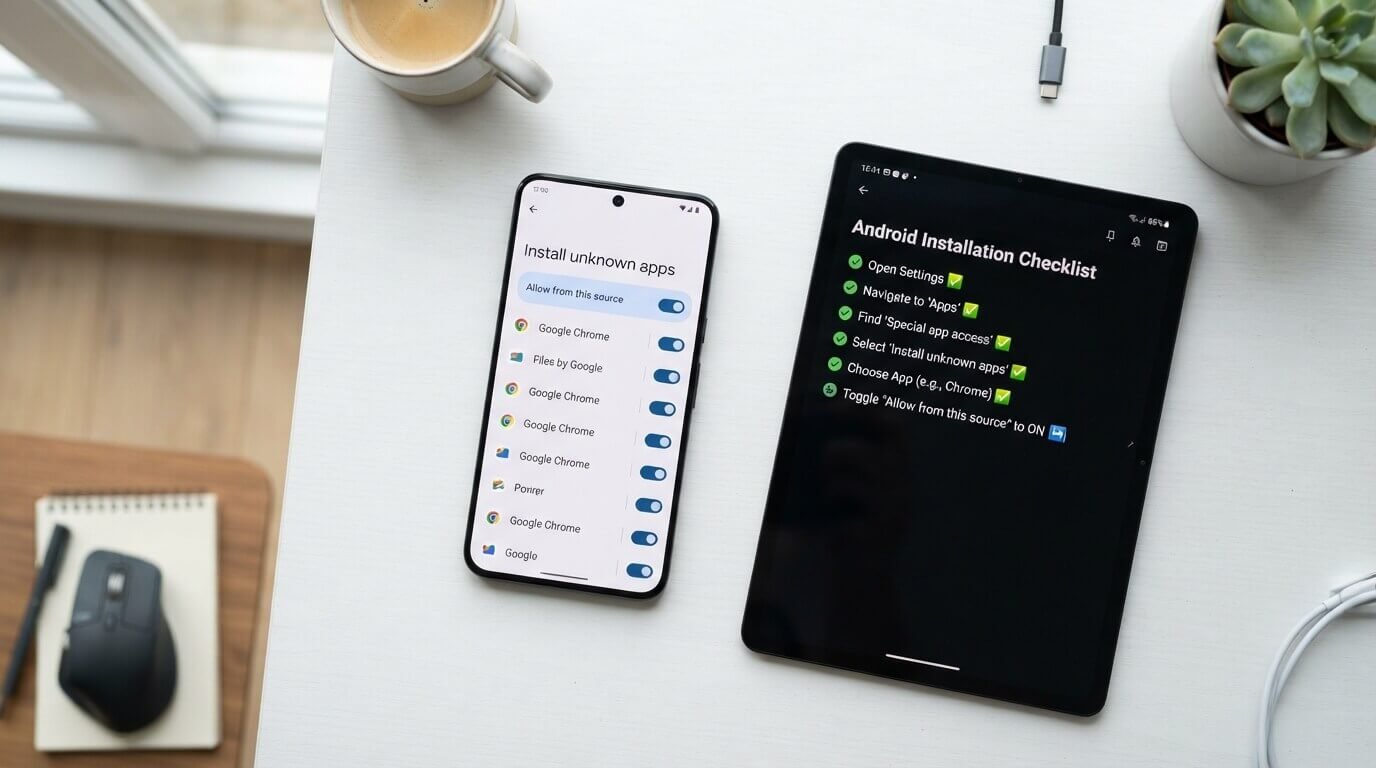
By default, Android blocks installs from outside the Play Store to protect you. To turn this on, go to Settings, then Apps or Security, depending on your phone. On newer versions, open the browser or file manager you used to download the file, and switch on “Allow from this source.” On older phones, you will find a setting called “Unknown sources” in the security menu.
Turn it on when asked. This permission does not need to stay on forever. You can switch it off again after the install, which is a smart habit that keeps your phone safer.
Step 3: Find the File and Open It
Now open your file manager app. Most phones have one called Files or My Files. Look inside the Downloads folder, where your APK should be waiting. The file name will end with “.apk.” Tap on it once to open it. If you cannot find it, you can also open the download list in your browser and tap the file from there.
Some phones show a small pop-up that asks which app you want to use to open the file. Choose “Package Installer” if you see that option, and continue to the next step.
Step 4: Tap Install and Wait
Once the file opens, your phone shows a screen with the app name and a list of the permissions it wants. Read this list. If a simple calculator app asks for your contacts, camera, and messages, something is wrong, and you should cancel right away.
If everything looks fine, tap “Install.” The process usually takes only a few seconds, though bigger apps and games may take longer. Do not close the screen or turn off your phone while it works. When it finishes, you will see a message that says “App installed,” along with two buttons: “Done” and “Open.”
Step 5: Open the App and Check Permissions
Tap “Open” to launch the app and make sure it works properly. Then go back to Settings, open the app’s page, and look at its permissions again. You can turn off anything that the app does not really need, such as location or microphone access.
This step is often skipped, but it gives you extra control over your privacy. If the app behaves in a strange way, shows too many ads, or asks for personal details it should not need, uninstall it immediately and run a security scan on your phone.
How to Install APK Using a Computer
Sometimes it is easier to use a computer, especially when the APK file is large or the phone’s screen is small. Connect your phone to your PC with a USB cable and choose “File Transfer” mode when the phone asks. Then copy the APK file from your computer into a folder on your phone, such as Downloads.
After that, unplug the cable, open your file manager, and follow steps three to five from the section above. Advanced users can also use a tool called ADB, which installs apps with a single command. For most people, though, a simple copy and paste is more than enough and works well.
Differences Across Android Versions
The main idea stays the same, but the setting for “unknown sources” has changed over the years. On Android 7 and older, there is one global switch in the security menu that allows installs from every unknown source. From Android 8 onward, the permission is given app by app, which is safer, because you allow only the browser or file manager you are using at that moment.
On Android 10, 11, and newer versions, Google has also added more checks and warning screens. If you cannot find the setting, simply search the word “install unknown apps” in your phone’s settings search bar, and it will take you straight there.
Best Places to Download APK Files Safely
Your first choice should always be the official website of the app’s developer, because those files come straight from the source. Some well-known stores also take safety seriously, and they check files for viruses and confirm the developer’s identity before sharing them.
Examples include the Amazon Appstore, Samsung Galaxy Store, and F-Droid, which focuses on free and open-source apps. Avoid sites that promise “free premium,” “unlimited coins,” or “no ads,” because these offers are the most common way to spread harmful software. If a deal sounds too good to be true, it almost always is, and it is not worth risking your personal data.
How to Check If an APK Is Safe
There are a few easy ways to check a file before you install it. Upload the APK to a free scanning website like VirusTotal, which tests it with dozens of antivirus engines at once. Check the developer’s name and read user reviews on trusted forums. Compare the file size with the number shown on the official website, since a very different size can mean the file was changed.
You can also install a good mobile security app that scans new apps automatically. Taking two minutes to do these checks can protect your phone, your money, and your private photos from serious damage.
Common Problems and How to Fix Them
Many people see the message “App not installed” or “There was a problem parsing the package.” The most common causes are a broken download, low storage, or an APK that does not match your Android version or phone type. Try downloading the file again from a trusted source, free up some space, and check the app’s requirements.
If you have an older version of the same app installed from the Play Store, remove it first, because the two versions may use different signatures. Also make sure the “install unknown apps” permission is still on. If nothing works, restart your phone and try once more.
How to Update an APK App
Apps installed from an APK do not update on their own, unlike Play Store apps. This is important because old versions may have security holes that hackers can use. To update, visit the same trusted source where you found the app and download the newest APK. Then open it and tap “Install,” and your phone will update the app over the old one while keeping your data safe.
Some stores, such as F-Droid, send update alerts for you. Get in the habit of checking for new versions every few weeks, so you always have the latest fixes and features.
How to Uninstall an APK App
Removing an How to Install APK on Android is just as easy as removing any other app. Long-press the app icon on your home screen and tap “Uninstall,” or go to Settings, then Apps, choose the app, and tap “Uninstall.” Doing this will also free up space on your phone.
After removing it, delete the APK file from your Downloads folder, since it no longer serves any purpose and only takes up storage. If you think the app was harmful, also change your important passwords and run a full scan with a trusted security app to make sure nothing is left behind.
Tips to Stay Safe While Installing APKs
Always download from official or well-known sources, and never trust files sent by strangers. Turn off the “unknown sources” permission once you finish installing. Keep Google Play Protect switched on, because it can scan outside apps too.
Read every permission carefully, and never give access that an app does not need. Keep your phone’s system updated, and use a screen lock. Finally, never enter banking details in an app you are not fully sure about. These small habits do not take much time, but together they build a strong wall around your phone and personal life.
Frequently Asked Questions
Can I install an APK without a computer? Yes. You only need your phone, a browser, and a file manager, as shown in the steps above.
Is installing APK files legal? Yes, installing APKs from legal sources is fine. Downloading pirated or cracked versions of paid apps is illegal and risky.
Will an APK void my phone’s warranty? No, normal APK installs do not void the warranty, though rooting or changing system files might.
Why does my phone say the app is blocked? Google Play Protect may have flagged the file. Check the source again before you continue.
Final Thoughts
Now you know how to install APK on Android from start to finish. The process is simple: download the file from a trusted place, allow the install, open the file, tap install, and check the permissions. What really matters is safety, so always check the source, scan the file, and keep your phone updated.
When done carefully, installing APK files gives you more freedom and more choice than the Play Store alone. Use this guide as your reference whenever you need it, and share it with friends or family who may be struggling with the same question.