Introduction
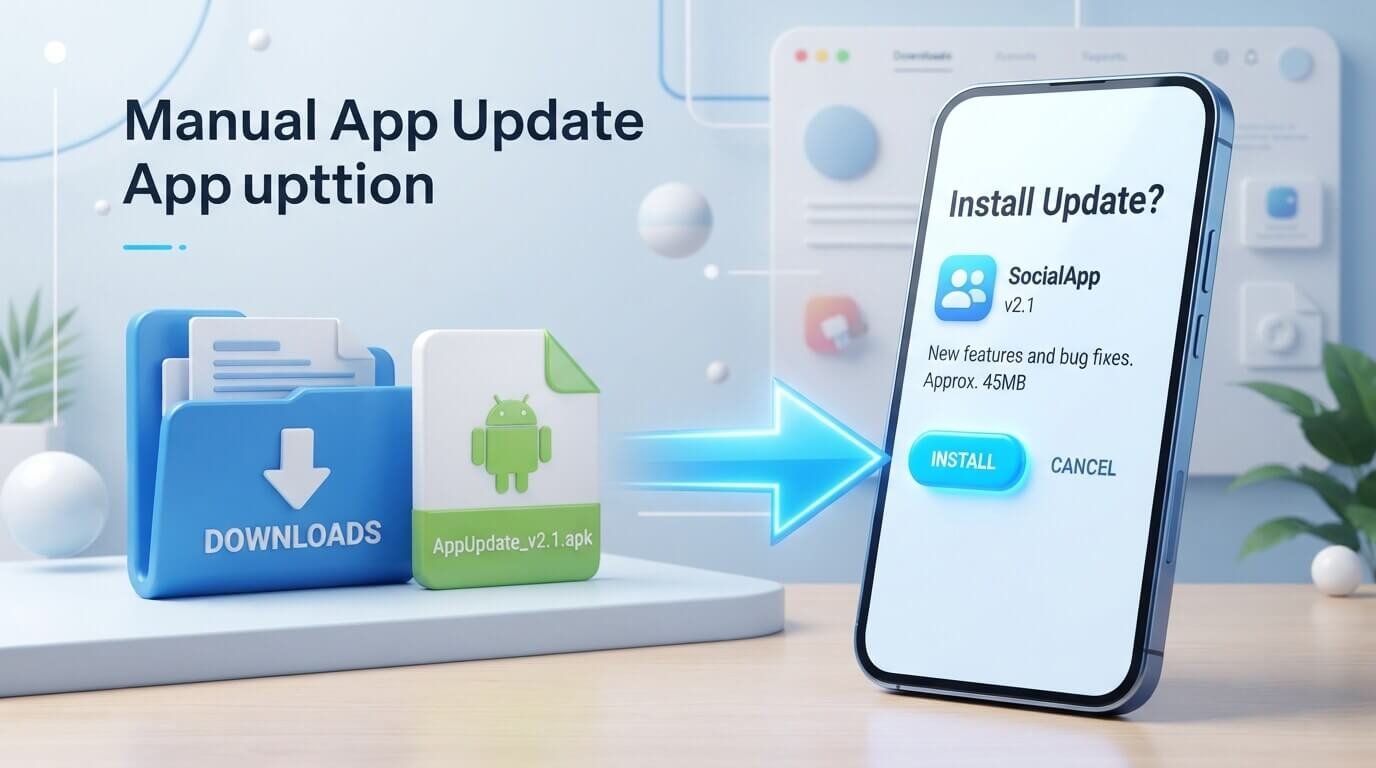
Learning how to update APK manually can be useful when an Android app does not update automatically or when a newer APK version is available outside the normal app store. An APK is the installation file used by Android applications, and updating one manually means downloading a newer version and installing it over the existing application.
The process is usually simple, but there are a few important things to check before starting. You need to make sure the new APK is compatible with your device, comes from a trustworthy source, and matches the application already installed. This guide explains the complete process in simple language so even beginners can understand how manual APK updates work.
What Is an APK File?
APK stands for Android Package Kit. It is the file format Android uses to distribute and install applications. When you download an Android application from an official app store, the APK installation process happens mostly in the background. When you download an APK manually, however, you are responsible for opening the file and allowing Android to install it. APK files are useful when an application is unavailable through your normal store, when a particular version is needed, or when automatic updates are not working correctly.
What Does Updating an APK Manually Mean?
Manually updating an APK means replacing an older installed version of an Android application with a newer version by using an APK file. Instead of waiting for the app store to deliver the update, you download the newer installation package yourself. Android normally recognizes that the application already exists and installs the newer version over it when the package is compatible and properly signed. Your existing app data may remain available, but this should never be assumed, which is why backing up important information is recommended before making changes.
Why Would You Need to Update an APK Manually?
There are several reasons someone may want to update an APK manually. Automatic updates may be disabled, an application may not yet be available in a user’s region, or the user may need a particular version of an application. Sometimes developers release an APK directly before an update reaches every distribution channel. Manual installation can also be useful for testing a newer version. Whatever the reason, users should remember that manually installing software requires more attention than using a normal automatic update process.
Check Your Current App Version
Before downloading a new APK, first find out which version of the application is currently installed on your phone. Open Android settings, go to the applications section, select the app, and look for its version information. Some applications also display their version number inside their own settings or information menu. Knowing the current version makes it easier to determine whether the APK you are downloading is actually newer. It also helps prevent accidentally installing an older version and creating unnecessary problems.
Find the Correct APK Version
After checking your current version, look for the newer APK you want to install. Make sure the file is designed for your Android version and device architecture. Android applications can sometimes have different packages for different processor architectures or operating system versions. If you download the wrong package, the installation may fail or the application may not work correctly. Do not assume that the newest-looking file is automatically the correct one. Check the version number and compatibility information carefully.
Choose a Trustworthy Download Source
The download source matters when updating an APK manually. Ideally, use the application’s official developer website or another source that has a clear reputation and provides reliable information about the application. Avoid random websites that use misleading download buttons, excessive redirects, or suspicious pop-ups. A file being labeled with the correct application name does not prove that it is genuine. Before installing anything, consider where the file came from and whether you have a reasonable way to verify its authenticity.
Back Up Important App Data
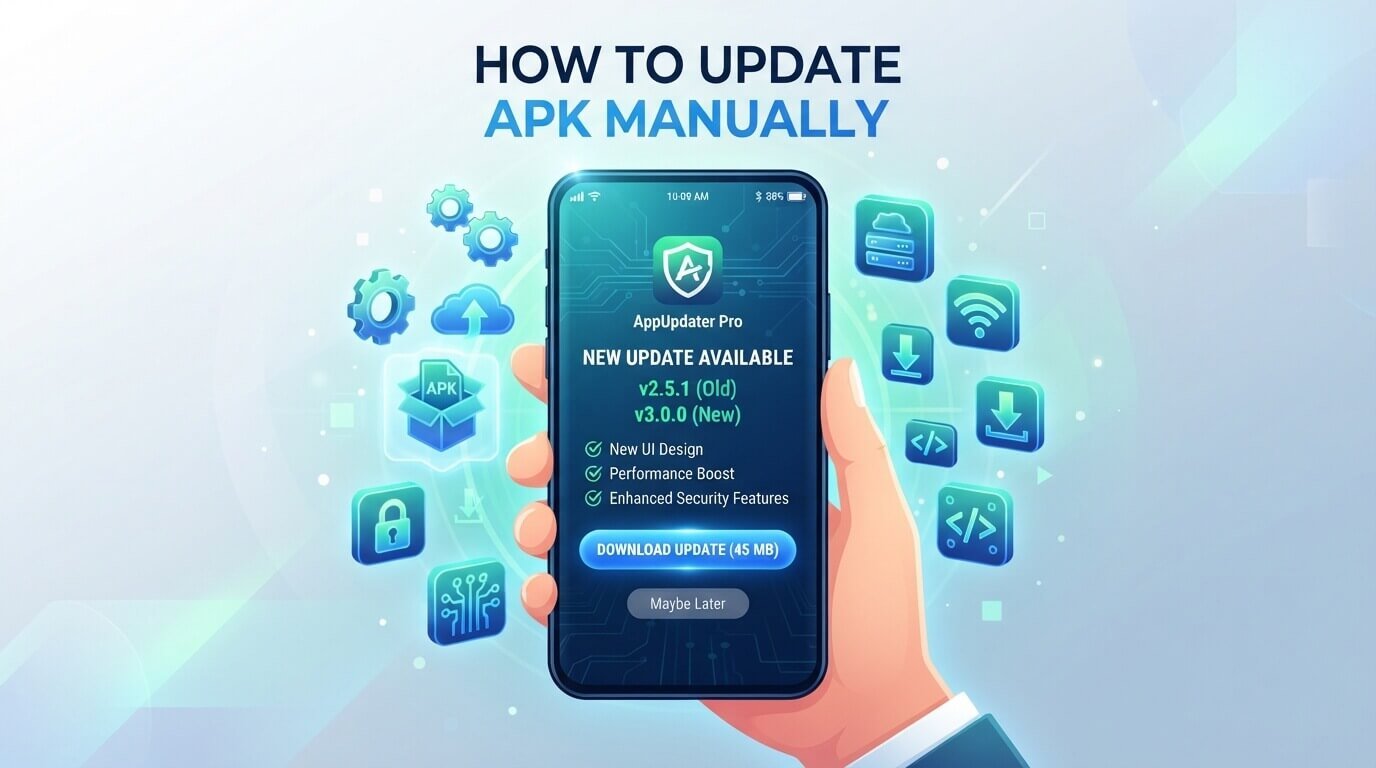
Although updating an application generally aims to preserve existing data, unexpected problems can happen. An installation may fail, an application may become incompatible, or a new version may contain a bug. For important applications, make sure valuable information is synchronized or backed up before installing an update. This is particularly important for applications containing documents, notes, project information, or other data that would be difficult to recreate.
Check the APK Before Installing
Do not immediately open a downloaded APK without checking it. Look at the filename, version number, file size, and download location. If the file looks completely different from what you expected, stop and investigate. You can also use reputable security software to scan the file before installation. A security scan cannot guarantee that an APK is harmless, but it can identify many known threats and provide another layer of protection.
Allow APK Installation When Required
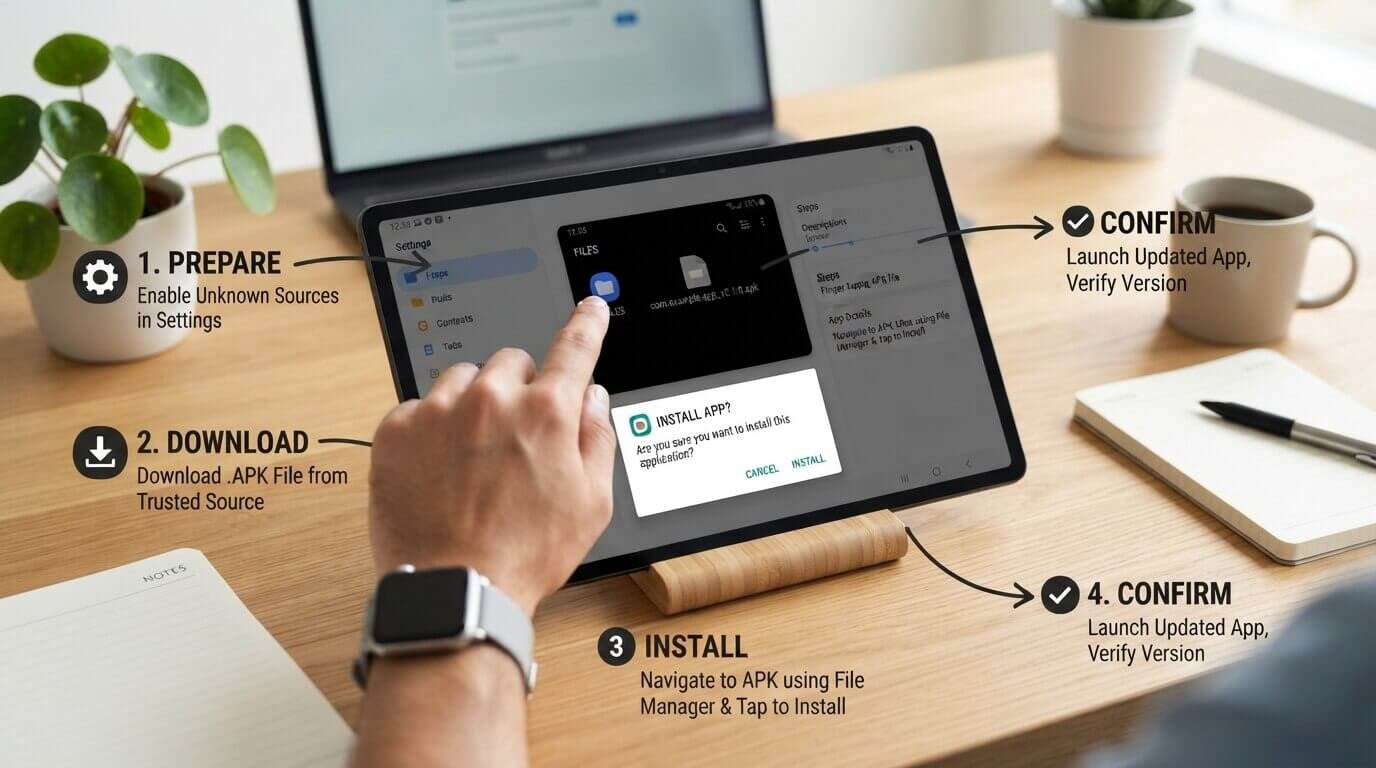
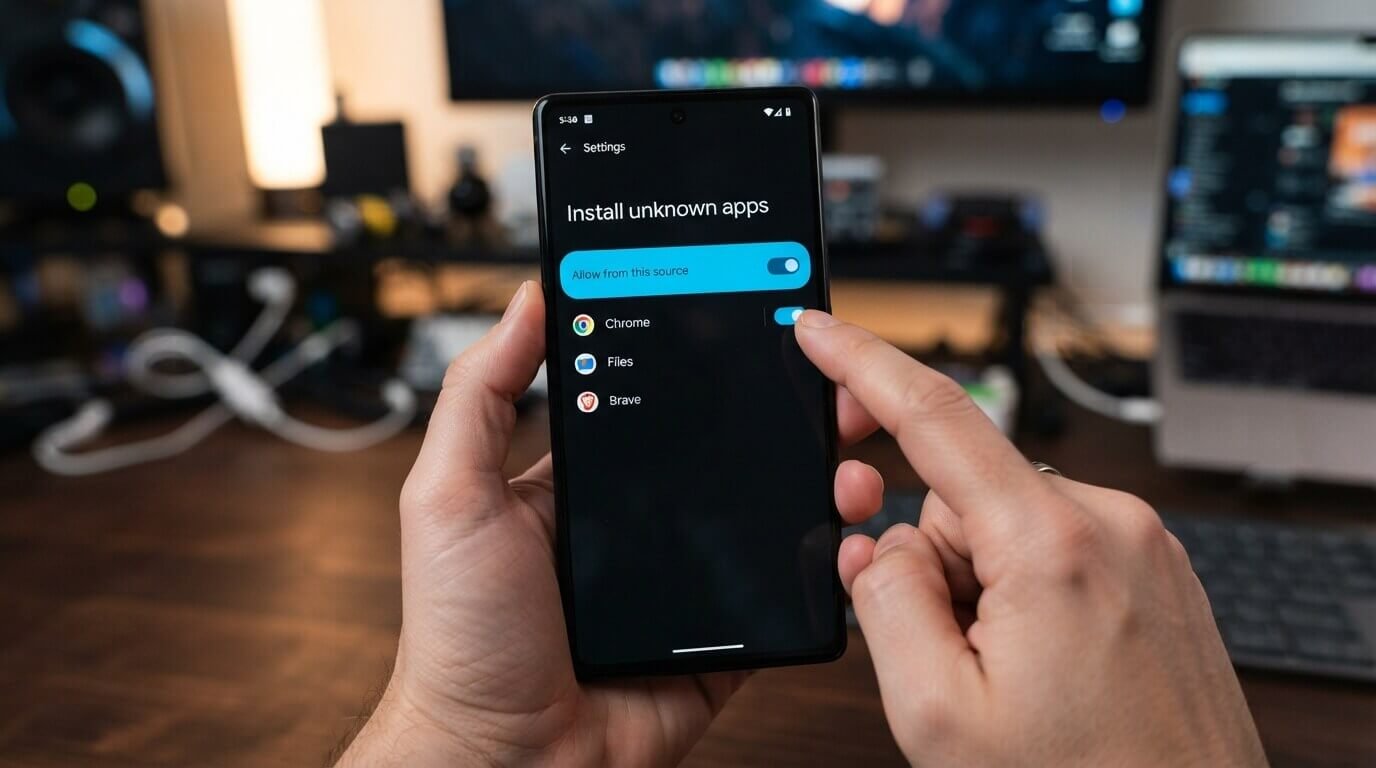
Modern Android versions restrict installations from unknown sources as a security measure. If you downloaded an APK outside the official app store, Android may ask you to allow the application you are using, such as a browser or file manager, to install unknown applications. The exact wording and location of this setting can vary by Android version and device manufacturer. Only grant the permission when necessary and understand which application is receiving it. You can review the setting afterward and disable it if you no longer need it.
How to Update APK Manually Step by Step
Once the correct APK has been downloaded and checked, the actual update is usually straightforward. Open your file manager and locate the downloaded APK. Tap the file to begin installation. Android should recognize that the application is already installed and may display an update or installation confirmation. Review the application name and requested permissions before continuing. If everything looks correct, confirm the installation and wait until Android finishes replacing the older version with the newer one.
What Happens to Your Existing App Data?
In many normal update situations, installing a newer compatible version over an existing application keeps the application’s data and settings. However, this depends on the application and the relationship between the old and new packages. If the APK is not signed correctly or is not compatible with the installed version, Android may refuse the installation. Some applications may also behave differently after major updates. For this reason, keeping a backup of important information is always a sensible precaution.
What If Android Says the App Cannot Be Installed?
If Android refuses to install the APK, do not immediately delete your existing application. First check whether the downloaded APK is actually newer and whether it matches the installed application’s package and signing information. An incompatible APK, damaged download, insufficient storage, or incorrect architecture can cause installation errors. Downloading the correct package again from a reliable source may solve some problems. If the application is important, avoid experimenting with multiple unknown APK files because doing so can make the situation more complicated.
Check Your Storage Space
Insufficient storage is another simple reason an APK update may fail. Even though an update replaces an existing application, Android may need additional temporary space during installation. Check your available storage before starting. If your phone is nearly full, remove unnecessary files or move personal media to another storage location. Having adequate free space can make installations smoother and also helps Android operate normally after the update.
Make Sure the APK Is Newer
It is surprisingly easy to download the wrong version. A file may have a familiar application name but still be older than the version currently installed on your phone. Always compare version numbers before starting the installation. If Android reports that the application is already installed with a newer version, stop rather than forcing a downgrade. Downgrading can sometimes require removing the current application, which may result in data loss.
Check App Permissions After Updating
After a manual update, it is worth reviewing the application’s permissions. Major updates can introduce new features that require additional access, but users should still understand what permissions are being requested. Go to Android’s application settings and review permissions such as camera, microphone, contacts, location, files, and notifications. If a permission seems unrelated to the application’s purpose, investigate before granting access. Good permission management is an important part of maintaining Android security.
Open and Test the Updated App
After installation finishes, open the application and test the main features you normally use. Check whether your account is still signed in, whether your saved information is available, and whether important functions work correctly. If the application immediately crashes or behaves strangely, do not ignore the issue. Restart the device and check whether the developer has documented any known problems with the new version. If necessary, restore the previous version only through a legitimate and trusted process.
How to Update APK Manually Without Losing Data
The safest approach to avoiding data loss is to update the existing application rather than uninstalling it first. When the new APK is compatible with the installed version, Android can normally install the update while preserving application data. However, there is no universal guarantee because applications handle their data differently. Back up important information before making changes, especially if the application contains information that cannot easily be recovered.
Manual APK Update vs Automatic Update
Automatic updates are more convenient because the operating system or app store handles much of the process for you. Manual updates provide more control over when and which version you install. This can be useful for advanced users, testers, and people who need a specific release. However, manual updates also require more responsibility because users have to verify the file, source, compatibility, and installation process themselves. For everyday users, automatic updates from trusted distribution channels are generally simpler.
Common Mistakes to Avoid
One common mistake is downloading an APK from the first website that appears in a search result. Another is installing a file without checking its version or compatibility. Users may also disable security protections permanently just to install one application, which creates unnecessary risk.
Avoid installing APKs from suspicious links, giving applications unnecessary permissions, or entering sensitive information into an application whose source you cannot verify. Taking a few minutes to check the file can prevent much bigger problems later.
Is Manual APK Updating Safe?
Manual APK updating can be safe when the APK is genuine, compatible, properly verified, and obtained from a trustworthy source. However, manually installing an APK carries more responsibility than receiving an update through a trusted app distribution system. The most important factors are the source of the file, its authenticity, its compatibility with your device, and the permissions requested by the application. Never assume that every APK available online is safe simply because it has a familiar name or icon.
Frequently Asked Questions
Can I Update an App Using an APK Without Uninstalling It?
Usually, yes. If the APK is a compatible update for the application already installed, Android can install it over the existing version. This is preferable because uninstalling an application first can remove local data.
Will a Manual APK Update Delete My Data?
A normal compatible update often keeps application data, but there is no absolute guarantee. Back up important information before installing a manually downloaded APK.
Why Won’t My APK Update Install?
Possible reasons include an incompatible APK, an older version, insufficient storage, a damaged download, or a mismatch between the existing application and the downloaded package.
Can I Install an Older APK Version?
Android may prevent a downgrade when the installed version is newer. In some cases, downgrading requires removing the current application, which can cause data loss.
Should I Update Every APK Manually?
Not necessarily. For most users, trusted automatic updates are easier and safer. Manual updates are mainly useful when there is a specific reason to control the installation yourself.
Final Thoughts
Understanding how to update APK manually gives Android users more control over application updates, but that control comes with responsibility. Start by checking your current app version, find the correct newer APK, verify its source, scan the file, back up important data, and make sure your device has enough storage. During installation, carefully check the application information and avoid unnecessary permissions. After the update, open the application and confirm that everything works normally. A careful approach makes manual APK updating much easier and helps reduce avoidable problems.
Short Answer
To update an APK manually, check your current app version, download the correct newer APK from a trustworthy source, scan and verify the file, allow installation from the required source if Android asks, and then open the APK to install it over the existing application. Back up important data first and check the app after updating to make sure everything works correctly.