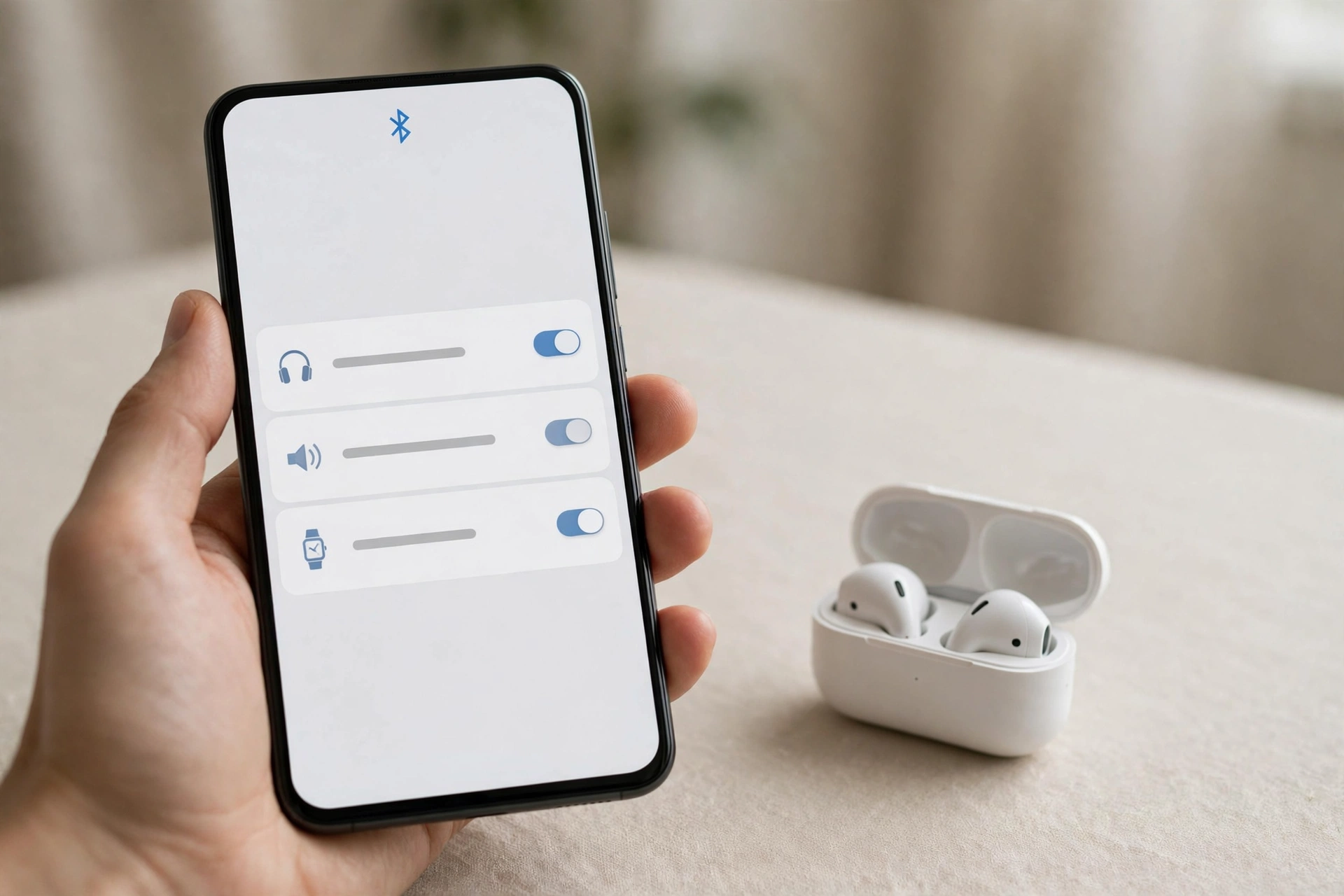
Fix Bluetooth not connecting on Android by finding the culprit first — most of the time it is one of three things: a stale pairing, battery saver putting Bluetooth to sleep, or the accessory still connected to another device. Work through the fixes below in order, cheapest first, and you will know within a few minutes whether it is a setting or the accessory itself.
The honest point first: Bluetooth failure is rarely a dead radio. The phone and the accessory agree on a stored pairing key when they first connect; if either side resets, updates, or forgets that key, the handshake silently fails. That is why “forget and pair again” fixes more cases than any booster app — and why no app can fix a pairing that the accessory itself has forgotten.
Fix Bluetooth Not Connecting on Android: Find the Culprit First
| What happens | Most likely cause | Start here |
|---|---|---|
| Accessory does not appear at all | Not in pairing mode, or too far away | Fix 2 |
| Pairs, then drops after a minute | Battery saver putting Bluetooth to sleep | Fix 4 |
| “Pairing failed” every time | Stale pairing key on one side | Fix 3 |
| Worked yesterday, not today | Accessory connected to another device | Fix 5 |
| Nothing pairs with the phone at all | Phone-side Bluetooth fault | Fix 6, then Fix 7 |
Fix 1: The 60-Second Basics (Toggle, Restart, Charge, Move Closer)
Do these before touching any setting — they fix a surprising number of cases.
1. Turn Bluetooth off, wait 10 seconds, turn it back on. Use the Settings toggle, not just the Quick Settings tile.
2. Restart the phone. Restart the accessory too — earbuds go back in the case, close it, wait 10 seconds, open it again.
3. Charge both sides. A dying bud or a phone at 5% will drop the radio to save power.
4. Move closer. First-time pairing works best within about 1 metre, with nothing between the phone and the accessory. Everyday Bluetooth range is about 10 metres, but pairing is far less forgiving than listening.
5. Check Airplane mode is off — it switches every radio off, and on some phones Bluetooth stays off until you turn it back on yourself.
Fix 2: Put the Accessory in Real Pairing Mode
An accessory that is on is not always discoverable. Most headphones, speakers, and watches need a button held for a few seconds until a light flashes or you hear a tone — that is pairing mode, and the phone can only find a device that is in it. Check the accessory’s manual if you are unsure which button it is. If the accessory appears in your phone’s list but will not connect, it is probably already paired — skip to Fix 3.
Fix 3: Forget the Device, Then Pair Clean
A stale pairing is the most common cause of “pairing failed”. Forgetting it on both sides and starting over fixes it.
1. Open Settings > Connected devices (on Samsung, Connections > Bluetooth).
2. Tap the gear next to the device, then tap Forget or Unpair.
3. Put the accessory back in pairing mode (Fix 2) and pair it again from scratch.
4. If it asks for a PIN and you do not have one, Google says try 0000 or 1234 — those are the standard codes for accessories with no PIN of their own.
Also forget the phone from the accessory’s side if it keeps a list of paired devices — many accessories remember up to 8 devices, and a full list will ignore new pairing calls.
Fix 4: Stop Battery Saver From Killing Bluetooth
If Bluetooth pairs and then drops a minute later, this is the usual 2026 cause: Android puts the Bluetooth system app to sleep to save battery. Our guide to fixing a fast-draining Android battery explains how battery saving decides what to kill — and Bluetooth is often first.
1. Open Settings > Apps, tap the three-dot menu, and turn on Show system apps.
2. Tap Bluetooth (if you also see Bluetooth MIDI or Bluetooth Share, open those too).
3. Tap Battery and set it to Unrestricted — not Optimized.
On Samsung, also check Settings > Battery > Background usage limits and take Bluetooth out of the sleeping apps list. And set the accessory’s own app — Galaxy Wearable, Pixel Watch, or your earbud app — to Unrestricted as well, so it is not killed in the background either.
Fix 5: Disconnect the Accessory From Everything Else
Most headphones and speakers connect to the last device they knew — your TV, tablet, or old phone — and many can only talk to one device at a time. If the accessory is happily connected to your laptop, your phone’s pairing calls will be ignored. Switch Bluetooth off on the other devices, or forget the accessory there, then try pairing with your phone again. This is also the first thing to check when the accessory works fine with one phone but not with another.
Fix 6: Clear the Bluetooth Cache and Check the Nearby Devices Permission
Two small settings that quietly break pairing.
Clear the Bluetooth cache: open Settings > Apps, turn on Show system apps, tap Bluetooth, then Storage > Clear cache. This removes the stored Bluetooth data without unpairing your devices. (Clearing an app’s cache is safe in general — our guide to clearing app cache on Android explains what cache is and is not.)
Check the Nearby Devices permission: since Android 12, Bluetooth scanning needs the Nearby Devices runtime permission instead of generic Location. If an app cannot see accessories at all, check what it is allowed to access first with our guide to checking app permissions on Android.
Also update everything: the phone’s system update, the accessory’s firmware, and the companion app. Bluetooth problems spike after operating-system updates, and the next patch is often the real fix.
Fix 7: Reset Network Settings (Last Software Step)
If nothing above worked, reset the phone’s wireless settings. This forgets all Wi-Fi networks and Bluetooth pairings, so you will need to rejoin Wi-Fi and re-pair your accessories afterwards.
On Pixel: Settings > System > Reset options > Reset Wi-Fi, mobile & Bluetooth. On Samsung: Settings > General management > Reset > Reset network settings. Confirm, then pair the accessory again from scratch (Fix 3).
For a car, also clear the phones from the car’s own memory — follow the car’s manual — and clear saved cars from Android Auto under Settings > Connected devices > Connection preferences > Android Auto. If wired Android Auto keeps dropping, try a different USB cable before anything else.
What Bluetooth Problems Are Not (The Honest Limits)
It is not always the phone. If the accessory pairs fine with another phone, the phone is not the problem — the accessory’s pairing list, its battery, or its firmware is. Test with a second phone before resetting anything.
It is not always software. If no accessory pairs with the phone at all — not earbuds, not a speaker, not a watch — after a network reset, the Bluetooth radio itself may be faulty, and that needs a repair shop, not another setting.
A factory reset is the last option, not the first. It wipes the whole phone for a problem that a forgotten pairing or one battery setting usually solves. If several things misbehave as well as Bluetooth, first run the Safe Mode test in our guide to fixing apps that keep crashing — if Bluetooth works in Safe Mode, a third-party app is the cause.
Choppy audio is a different problem. If the accessory connects but the sound stutters, the cause is usually interference or the audio codec, not the pairing. In Developer options you can switch the Bluetooth audio codec from LDAC or aptX to SBC or AAC — steadier sound at lower quality. That is an advanced step; try moving away from Wi-Fi routers and other Bluetooth devices first.
What Not to Do
Do not install a “Bluetooth booster” or fixer app. No app can repair a pairing key or wake a radio that the system put to sleep — and many of these apps ask for broad permissions and show ads of their own. The built-in fixes above need none of that risk.
Do not factory reset to fix one pairing. A reset is the last step for a broken phone, not a pairing tool — it wipes everything for a problem one forgotten device would have solved.
Do not use a metal object to clean anything. This is about pairing, not ports — but if you ever clean a charging port while troubleshooting, use only a dry wooden toothpick, never metal, which can short the contacts permanently.
Do not keep pairing the same stale device. If “pairing failed” repeats three times, stop and forget the device on both sides (Fix 3). Repeating the same failed pairing does not fix the stored key — it just wastes the battery.
Frequently Asked Questions
Why does my Bluetooth keep disconnecting after a minute?
Usually battery saver. Android puts the Bluetooth system app to sleep, and the connection drops. Set Bluetooth to Unrestricted in Settings > Apps > Show system apps > Bluetooth > Battery, and do the same for the accessory’s companion app.
Why won’t my phone find my earbuds?
Either the earbuds are not in pairing mode, or they are already connected to another device. Put them back in the case, hold the pairing button until the light flashes, and switch Bluetooth off on your other devices first.
What PIN do I use to pair Bluetooth?
If the accessory asks for a PIN and you do not have one, Google says try 0000 or 1234. Accessories with their own PIN use the code in their manual or on the device itself.
Should I reset network settings to fix Bluetooth?
Only after the cheaper fixes. Forgetting and re-pairing, and the battery-saver fix, solve most cases. A network reset forgets every Wi-Fi network and Bluetooth pairing on the phone, so keep it as the last software step.
Google’s own Android support page covers Bluetooth problems in full: Fix Bluetooth problems on Android (Google Android Help). See all our guides on the Browse APKs page.
Last updated: November 11, 2026
1 thought on “How to Fix Bluetooth Not Connecting on Android (2026)”