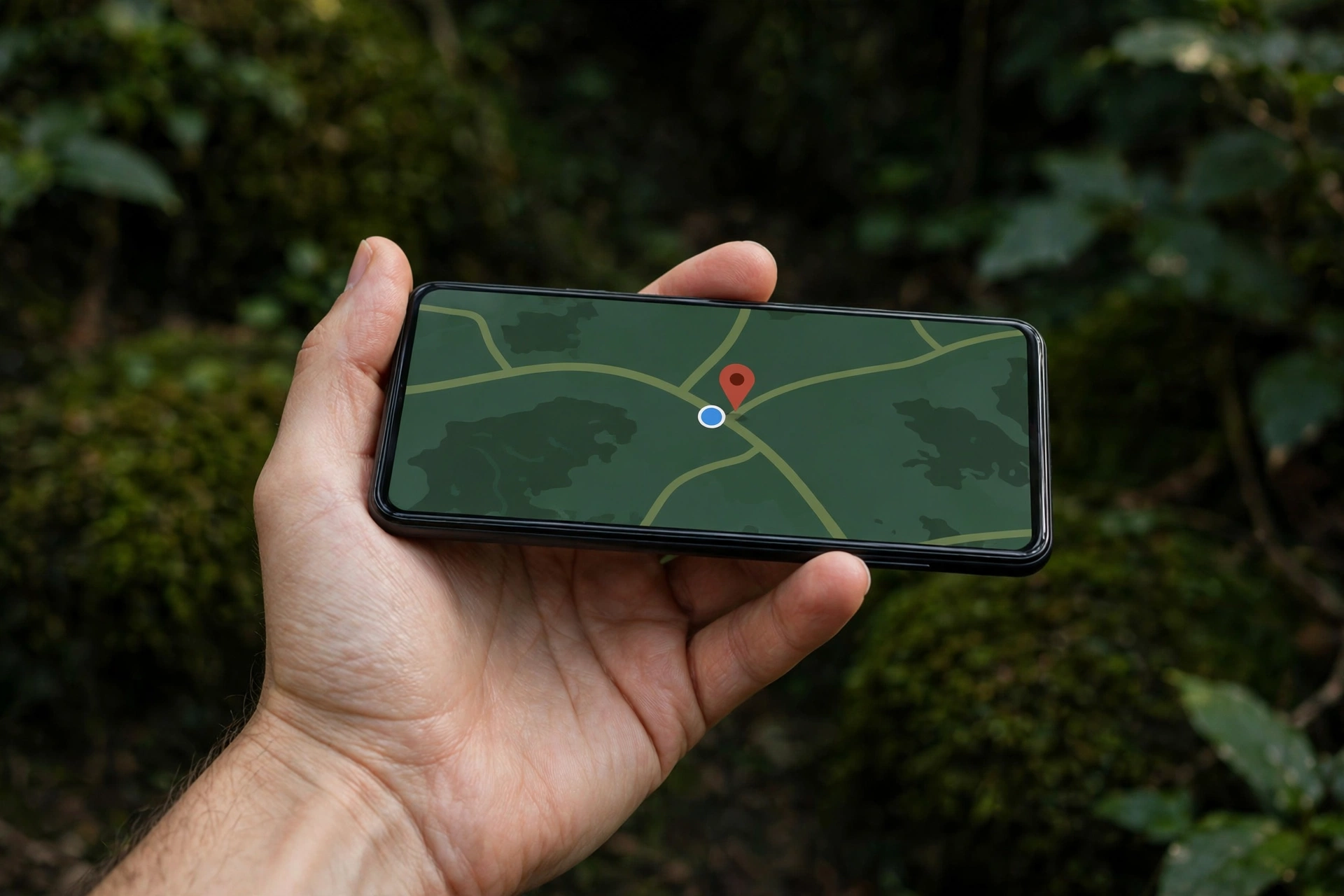
Fix Android GPS Not Working by finding the fault first — check whether no app can find you, the blue dot jumps around, only one app is lost, or it works outside but not inside. If nothing gets a fix outdoors under open sky, the phone is not seeing the satellites. If the dot jumps from street to street, the phone is guessing from Wi-Fi and towers instead of a real satellite fix. If only one app is lost while Maps knows where you are, that app’s permission is the fault. Work through the fixes below in order, cheapest first, and you will know within a few minutes which one it is.
The honest point first: GPS that “stops working” is usually blocked by a setting or by the place you are standing, not broken inside the phone. A battery saver, an approximate-location permission, or Location Accuracy turned off all sit between the satellites and your screen, and concrete roofs, basements, and dense buildings block a signal that is already weak by the time it reaches the ground. That is why the first fix below tests the phone outdoors, under open sky, before you change anything.
Fix Android GPS Not Working: Read the Fault First
| What you see | Most likely cause | Start here |
|---|---|---|
| No location in any app, even outdoors | Location is off, or the phone cannot see satellites | Fix 1 |
| Blue dot jumps around the map | No satellite fix — phone is guessing from Wi-Fi and towers | Fix 1, then Fix 3 |
| Only one app is lost, Maps works fine | That app has approximate location, or no permission at all | Fix 2 |
| Works outdoors, fails indoors | Roof and walls block the satellite signal | Fix 3 |
| Works on a walk, drops in the car | Car body, mount, or heated windscreen blocks the signal | Fix 5 |
| GPS drops after an update | App or system bug, or a permission reset by the update | Fix 6, then Fix 2 |
Fix 1: Step Outside and Toggle Location Off and On
Test the GPS chip itself before you change any settings. Your phone needs a clear view of at least four satellites to work out where you are, and indoors it often cannot see any of them — so a phone that fails inside and works outside is fine.
1. Go outside, or stand next to a large window with a view of open sky — away from tall buildings, concrete roofs, basements, and parking structures. Open Google Maps and wait up to two minutes for the blue dot to settle.
2. If it still cannot find you, toggle Location off and back on: swipe down twice for Quick Settings and tap the Location tile off, wait a few seconds, then tap it on again. Flipping the switch restarts the search for satellites and often clears a temporary glitch.
3. As a pass-or-fail check, a free GPS test app from the Play Store shows how many satellites the phone sees and how accurate the fix is — under 35 metres outdoors means the GPS is working, and 0 metres or a reading stuck over 35 metres outdoors means it is not. If the test app gets a fix outdoors, your GPS chip is fine and the fault is in a setting — go to Fix 2.
4. If nothing gets a fix outdoors on a charged phone, skip ahead to Fix 6 — and if that still fails, the fault is likely hardware, not settings.
Fix 2: Give the App Precise Location Permission
Two separate settings control location: the phone-wide switch, and the permission given to each app. Both must be right, and the app-level one is the fault most often — especially when Maps works but one other app is lost.
1. Open Settings > Location and make sure Use location is on. If it is off, no app can find you at all.
2. Open Settings > Apps > [app name] > Permissions > Location and choose Allow only while using the app for most navigation apps, or Allow all the time if it needs to track you with the screen off, like a fitness tracker.
3. On the same screen, turn on Use precise location. If this is off, the app only gets an approximate area — accurate to about 3 square kilometres — which looks exactly like GPS failing, when the GPS was never asked for a precise fix.
4. If the app’s permission was set to “Ask every time” or “Don’t allow”, change it and test again. An update can also reset a permission, so check this again after any update that broke GPS.
Fix 3: Turn On Improve Location Accuracy and Scanning
Android does not rely on satellites alone. It combines GPS with Wi-Fi networks, Bluetooth devices, and mobile towers to find you faster and more accurately — which matters most indoors and in cities, where the satellite signal is weak or bouncing off tall buildings.
1. Open Settings > Location > Location services and turn on Improve Location Accuracy (on some phones it is called Google Location Accuracy).
2. On the same screen, turn on Wi-Fi scanning and Bluetooth scanning if you see them. They let location work even when Wi-Fi or Bluetooth appear switched off.
3. Turn airplane mode off and make sure mobile data or Wi-Fi is on while you test — the phone uses towers and Wi-Fi to help the first fix arrive faster. (Our guide to fixing mobile data that does not work covers airplane mode and background data in detail.)
4. Test again indoors. If the dot now settles instead of jumping, the phone was missing its helpers, not its satellites — tall buildings reflect GPS signals, and Wi-Fi is what steadies the position between them.
Fix 4: Turn Off Battery Saver and Take the App Off Battery Limits
If GPS works while you are looking at the phone but drops when the screen goes off, a battery saver is pausing it. Android holds the app’s location back until you wake the phone, so a ride-share or fitness app loses you mid-trip.
1. Turn off Battery Saver and Power saving while you test. A saver is one of the usual reasons GPS stops in the background. (Our guide to fixing a battery that drains fast explains what Battery Saver does and when to use it.)
2. Open Settings > Apps > [app name] > Battery and set it to Unrestricted for apps where live location matters — navigation, ride-sharing, and fitness apps first. (On some phones the path is Settings > Battery > [app name] — search Settings if it differs on your phone.)
3. On Samsung, also check Settings > Battery > Background usage limits — an app on the sleeping or deep-sleeping list will not wake to update your location.
4. Test with the screen off for five minutes on a walk. If the track now stays with you, battery limits were the fault.
Fix 5: Calibrate the Compass, Remove the Magnetic Case, and Check the Car
A jumping dot or a map that points the wrong way is often the compass, not the GPS. Magnets interfere with the phone’s compass sensor, and a car body can block the signal that was fine on foot.
1. Open your map app and move the phone in a figure-8 motion a few times. This calibrates the compass and steadies which way the map points.
2. Take off any magnetic case, magnetic mount, or wallet case while you test — magnets interfere with the internal compass, and a mount stuck to a metal dashboard can shield the signal too.
3. If GPS works on a walk but drops in the car, the car is usually the problem: a heated windscreen, a metal roof, or a mount low on the dashboard can block the satellites. Move the phone to the windscreen, away from metal, and test again.
4. If the dot still jumps after the compass is calibrated and the case is off, go back to Fix 3 — the phone is still guessing from Wi-Fi and towers instead of holding a satellite fix.
Fix 6: Restart, Update, Then Clear Cache and Reset Network Settings
A restart clears the temporary glitch that can freeze the service behind location, and updates often fix GPS bugs that an earlier version caused. The steps below go from cheapest to last resort.
1. Restart the phone and test again outdoors. A restart is the fastest way to clear a stuck location service.
2. Update the navigation app from the Play Store, then check for a system update and install the latest one. Many GPS errors are fixed in new app versions.
3. If only one app is still lost, force-stop it and clear only its cache — do not tap “Clear storage” by mistake. (Our guide to clearing app cache on Android explains what cache is and is not.)
4. If nothing else works, reset network settings — Settings > System > Reset options > Reset Wi-Fi, mobile & Bluetooth. This clears saved Wi-Fi and Bluetooth pairings, so you will need to reconnect them afterwards — do this last, not first. If GPS still gets no fix outdoors after this, on a charged phone, the fault is likely hardware and the phone maker is the next step.
What GPS Problems Are Not (The Honest Limits)
It is not always a broken phone. If GPS works outdoors but not indoors, the building is the cause — and Fixes 1 and 3 are what separate that from a fault in a setting.
It is not always one cause. A missing permission, approximate location, a battery limit, and a blocked signal all stop the same blue dot in different ways, and each needs its own fix — that is why the table at the top comes first.
A GPS-booster app cannot fix it. No app can grant a permission, turn on Location Accuracy, or see through a concrete roof for you — and no such app is recommended here. The fixes that work are all in Settings, plus open sky.
What Not to Do
Do not factory reset to fix one lost app. A reset is the last step for a broken phone, not a GPS tool — check the permission and the battery limit first (Fixes 2 and 4).
Do not install a “GPS booster” or “GPS fixer” app. The built-in fixes above need none of that risk, and such an app cannot fix a permission, a battery limit, or a blocked signal.
Do not tap “Clear storage” when you mean “Clear cache”. Clearing storage resets the whole app and signs you out; clearing cache only removes temporary data and keeps your trips and places.
Do not test GPS only indoors. A phone that cannot see satellites through a roof is not broken — test outdoors under open sky first (Fix 1) before changing anything.
Frequently Asked Questions
Why does GPS work outdoors but not indoors?
Because satellite signals are weak by the time they reach the ground, and concrete roofs, basements, and parking structures block or bounce them. Indoors the phone falls back on Wi-Fi and towers, which is slower and less accurate — turn on Improve Location Accuracy (Fix 3) and test outdoors first.
Why does only one app lose my location while Maps works?
Because that app’s own location permission is off, or it only has approximate location. Check Settings > Apps > [app] > Permissions > Location and turn on precise location (Fix 2) — the phone-wide switch can be on while one app is still blocked.
Why does the blue dot keep jumping around the map?
Because the phone has no satellite fix and is guessing from Wi-Fi and towers, which bounce off tall buildings. Step outside under open sky, turn on Improve Location Accuracy, and calibrate the compass with a figure-8 motion (Fixes 1, 3 and 5).
Why does GPS drop in the car but work on a walk?
Because the car body, a heated windscreen, or a magnetic mount blocks the satellites. Move the phone to the windscreen away from metal, take off the magnetic case, and test again (Fix 5).
See all our guides on the Browse APKs page.
Last updated: November 15, 2026