Iintroduction
Backing up your Android phone is one of the most important things you can do to protect your personal information. Smartphones store many valuable things, including photos, videos, contacts, messages, documents, apps, and important files. Losing this information because of a damaged phone, accidental deletion, software problem, or factory reset can be frustrating.
Fortunately, Android offers several simple ways to back up your data safely. If you want to learn how to backup android phone, this complete guide will explain different backup methods in simple words. Whether you use a Samsung, Google Pixel, Xiaomi, Oppo, Vivo, or another Android device, you can follow these steps to protect your important information and restore it whenever necessary.
1. What Is an Android Phone Backup?
An Android phone backup is a saved copy of your important mobile data. It lets you recover information if your phone is lost, damaged, stolen, or reset. A backup can include contacts, pictures, videos, applications, messages, device settings, and other personal files.
Instead of keeping everything in one place, you create another copy using cloud storage, a computer, or an external storage device. This makes your information safer and helps you move your data to a new smartphone without starting from zero.
2. Why Should You Backup Your Android Phone?

Backing up your Android phone protects you from unexpected data loss. Imagine accidentally deleting your favorite family pictures or losing important business contacts after your phone stops working. Without a backup, recovering this information can be difficult or sometimes impossible.
Regular backups provide peace of mind because you have another copy of your valuable files. They are also useful before installing major software updates, performing a factory reset, changing smartphones, or troubleshooting serious Android problems.
3. How to Backup Android Phone Using Google Account
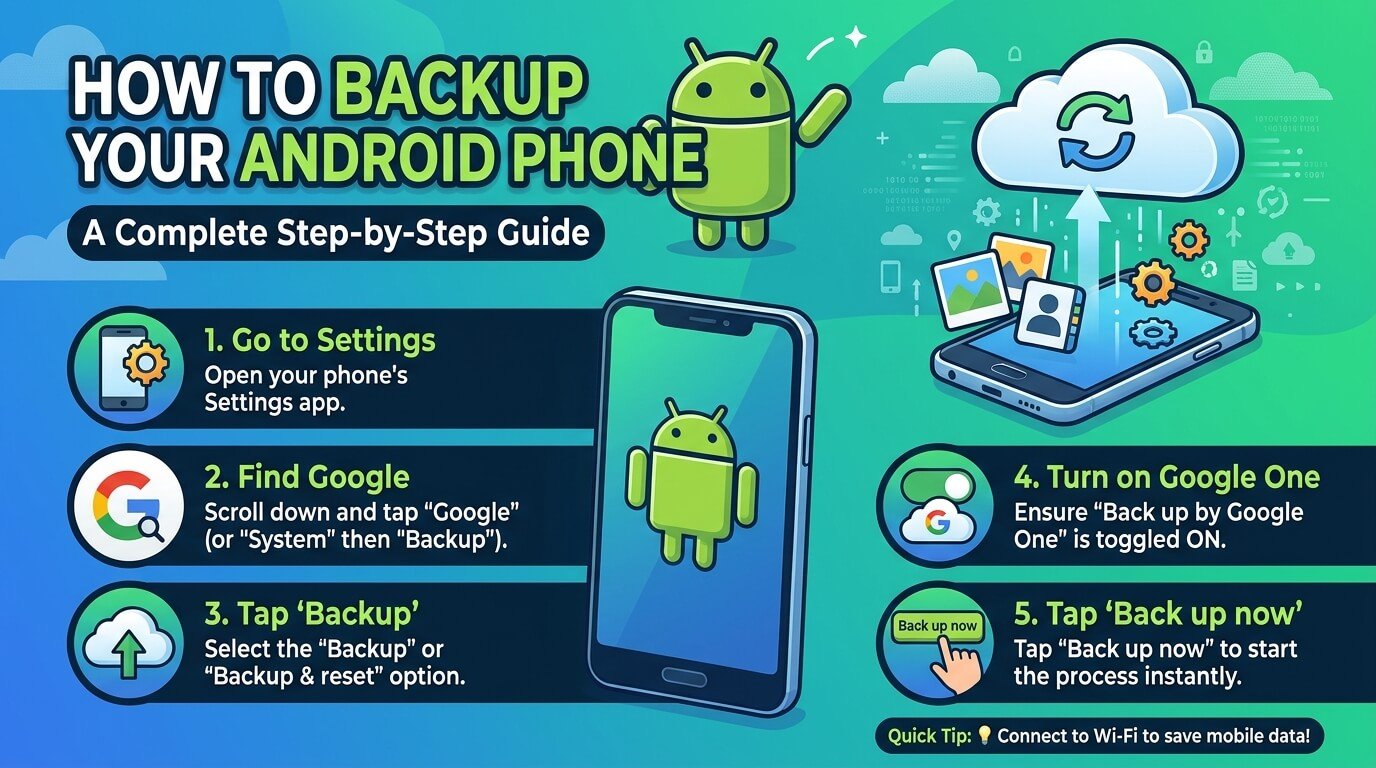
Google provides a built-in backup feature on most Android smartphones. It can save supported information to your Google Account, making it easier to restore your data later. First, open your phone’s Settings application and find the Google option. Depending on your Android version, you may need to select Backup under Google services or System settings.
Turn on the backup option and select Back up now if available. Your phone may save supported app data, call history, contacts, device settings, and SMS messages. The exact information included depends on your device, Android version, and application settings.
4. How to Backup Android Phone to Google Drive
Google Drive is a convenient option for storing important files online. You can upload documents, pictures, videos, and other supported files to your Google Drive account. Open the Google Drive application and sign in using your Google Account. Tap the plus (+) icon and select Upload.
Choose the files you want to save and wait until the upload finishes. Once uploaded, you can access those files from another device by signing in to the same account. Remember that Google Drive storage is shared with other Google services, so check your available storage before uploading large files.
5. How to Backup Photos and Videos on Android
Photos and videos often contain memories that cannot be replaced. Google Photos offers a simple way to protect these files through cloud backup. Open Google Photos, tap your profile picture, and navigate to Photos settings or Backup. Turn on Backup and choose the Google Account you want to use. You can also review the upload quality and backup preferences.
Depending on your internet connection and the size of your media collection, uploading everything may take some time. Keep the application connected to a stable Wi-Fi network until the backup is complete.
6. How to Backup Android Contacts
Your contacts include phone numbers, email addresses, and other important information. Losing them can create problems, especially if you use your phone for personal or business communication. To protect your contacts, make sure they are synchronized with your Google Account. Open Settings, select Passwords and accounts or Accounts, choose your Google Account, and check whether Contacts synchronization is enabled.
You can also export contacts as a VCF file through the Contacts application. Save this file to Google Drive or another secure location so you can import your contacts whenever needed.
7. How to Backup Android Messages and Call History
Text messages and call history may contain important personal or business information. Android’s built-in Google backup supports SMS messages and call history on many devices. Open Settings, navigate to Backup, and check whether these options are included in your device backup. Some manufacturers also provide additional backup tools for messages and call records.
Keep in mind that not every messaging application stores its conversations through Android’s general backup system. For example, WhatsApp has its own backup settings, which you should configure separately to protect your chats and media.
8. How to Backup Android Phone to a Computer
Using a computer is another useful way to protect your Android data. This method allows you to keep an additional copy of important files without depending entirely on cloud storage. Connect your Android phone to your computer using a USB cable. Unlock your smartphone and select File Transfer when the USB connection notification appears.
Open your phone’s storage on the computer and locate folders such as DCIM, Pictures, Movies, Download, and Documents. Copy the files you need and paste them into a folder on your computer. Wait until the transfer finishes before disconnecting your phone.
9. How to Backup Android Phone to an SD Card
If your Android smartphone supports a microSD card, you can use it to store important files. Insert a compatible memory card into your phone and open the File Manager application. Select the photos, videos, documents, and other files you want to protect. Choose Copy or Move and select the SD card as the destination. This creates another storage location for your information.
However, memory cards can become damaged or corrupted, so they should not be your only backup method. Consider keeping another copy of important files on a computer or cloud storage service.
10. How to Backup Samsung Android Phone Using Smart Switch
Samsung users can use Samsung Smart Switch to transfer and back up supported phone data. Install Smart Switch on a compatible computer or use its supported mobile transfer options. Connect your Samsung smartphone to the computer using a USB cable and follow the instructions displayed on the screen. Select Backup if the option is available and choose the information you want to save.
Allow the process to finish before disconnecting the device. Smart Switch is particularly helpful when moving from an older Samsung phone to a new Samsung smartphone because it supports transferring many types of personal information.
11. How to Backup WhatsApp Data on Android
WhatsApp conversations can contain important messages, pictures, videos, and documents. To protect this information, open WhatsApp and tap the three-dot menu. Select Settings, then Chats, and open Chat backup. Choose your Google Account and select a backup frequency that suits your needs. You can also decide whether to include videos because they may use significant storage space.
Tap Back up to start the process manually. Before changing phones or reinstalling WhatsApp, confirm that your backup completed successfully and that you can access the Google Account associated with it.
12. How to Backup Android Apps and App Data
Android can save supported application data through its built-in backup service. This may include certain application settings and information that developers allow Android to back up. Open Settings, find Google Backup, and make sure the backup service is enabled. However, some applications store their information separately or require you to sign in again after restoring your phone.
Banking applications, games, social media applications, and other services may have their own backup or account recovery systems. Check the individual application’s settings before resetting your smartphone to avoid losing important information.
13. How to Backup Android Phone Before Factory Reset
A factory reset removes personal information and settings from your phone’s internal storage. Before performing one, make sure your important data is safely stored somewhere else. Start by checking your Google backup and confirming that your photos and videos have finished uploading. Copy important documents and downloads to a computer or external storage device.
Check WhatsApp backups and make sure your contacts are synchronized. You should also remember your Google Account email address and password because Android devices may request previous account information after a reset. Never begin a factory reset until you are confident that your important data is protected.
14. How to Restore Data After Backing Up Android
Restoring your information is the main reason to create a backup. When setting up a new Android smartphone, sign in using the same Google Account that contains your backup. Follow the setup instructions and select the available backup when prompted. Your phone may restore supported contacts, applications, messages, settings, and other information.
Photos backed up through Google Photos can be viewed by signing in to the same account. If you saved files on a computer or SD card, connect the storage device and copy those files back to your phone.
15. How Often Should You Backup Your Android Phone?
The best backup schedule depends on how frequently you use your smartphone and how important your information is. If you regularly take pictures, download documents, or receive important messages, automatic backups are a good choice. Enable available cloud backup features and check them regularly. You can also create a manual backup on your computer once every few weeks.
If you manage important business information or work documents on your phone, consider making additional copies more frequently. A consistent backup routine reduces the amount of information you could lose if something unexpected happens.
16. Common Android Backup Problems and Their Solutions
Sometimes Android backups fail because of insufficient storage, weak internet connections, outdated software, or account synchronization problems. If your backup is not working, first check your internet connection and available Google Account storage.
Restart your smartphone and try again. Make sure you are signed in to the correct Google Account and that backup settings are enabled. Updating Google Play services and your Android operating system may also help resolve certain problems. If an individual application is not backing up, check its own settings because it may require a separate backup process.
17. Tips for Keeping Your Android Backup Safe
Creating a backup is important, but keeping it secure is equally necessary. Always use a strong password for your Google Account and enable two-step verification. Avoid uploading sensitive information to unknown websites or untrusted applications.
Keep your computer protected with updated security software and store important backup files in a safe location. It is also helpful to maintain more than one copy of essential documents and pictures. Check your backup status regularly instead of assuming that everything has been saved automatically.
18. Cloud Backup vs Local Backup: Which Is Better?
Cloud backup and local backup both offer useful benefits. Cloud storage allows you to access supported information from different devices and can protect files even if your phone is physically damaged. However, it usually requires an internet connection and sufficient online storage.
Local backup stores information on a computer, memory card, or external drive. It provides more direct control over your files but can be affected if the storage device becomes damaged or lost. For better protection, combining cloud and local backups is a practical solution.
19. Frequently Asked Questions About Android Phone Backup
Can I Backup My Android Phone Without a Computer?
Yes. You can use Google Backup, Google Drive, Google Photos, and application-specific backup services to save supported information without a computer.
Does Android Automatically Backup Data?
Many Android phones support automatic backups through a Google Account. However, you must enable the feature and ensure that your device meets the backup requirements.
Can I Backup My Entire Android Phone?
You can back up many important types of information, including supported settings, contacts, messages, applications, and media files. However, no single backup method necessarily saves everything.
Is Google Backup Free?
Google provides free storage with a Google Account, but the available storage is limited and shared across supported Google services. Additional storage may require a paid plan.
How Long Does an Android Backup Take?
The time depends on the amount of information, internet speed, available storage, and the backup method. Small backups may finish quickly, while large photo and video collections can take much longer.
Can I Backup Android Data Without Internet?
Yes. You can copy supported files to a computer or SD card using a USB connection. However, cloud backup services require an internet connection.
20. Final Thoughts
Learning how to backup android phone is essential for protecting your valuable information. Google Backup, Google Drive, Google Photos, computer transfers, and SD cards all provide useful ways to save important data.
For the best results, use automatic cloud backups and maintain an additional local copy of your most important files. Check your backup status regularly, especially before resetting your device or switching to a new smartphone. A few minutes spent creating a backup today can save you from losing important memories, documents, and personal information tomorrow.