Introduction
Seeing horizontal lines on your Android phone screen can be frustrating, especially when you are trying to watch videos, browse the internet, play games, or use important applications. These lines may appear in different colors, including green, pink, white, black, or blue. Sometimes they disappear after restarting the phone, while in other cases, they remain visible all the time.
If you are experiencing horizontal lines on phone screen android, it is important to understand what causes this problem and how you can fix it. The issue may be related to software bugs, display settings, overheating, physical damage, or a faulty screen connection. Fortunately, several troubleshooting methods can help you identify the cause and possibly solve the problem without spending money on repairs. This guide explains the most common reasons and practical solutions in simple words.
1. What Are Horizontal Lines on an Android Phone Screen?
Horizontal lines are visible marks that appear across the display of an Android smartphone. They may look like thin colored stripes, dark bars, flickering lines, or bright white marks. Some users notice only one line, while others experience multiple lines covering different parts of the screen. These lines can appear permanently or come and go depending on how the phone is being used.
In many situations, the display problem makes it difficult to read text, watch videos, and interact with applications. Understanding the appearance and behavior of these lines can help you identify whether the problem is related to software or hardware.
2. Common Causes of Horizontal Lines on Phone Screen Android

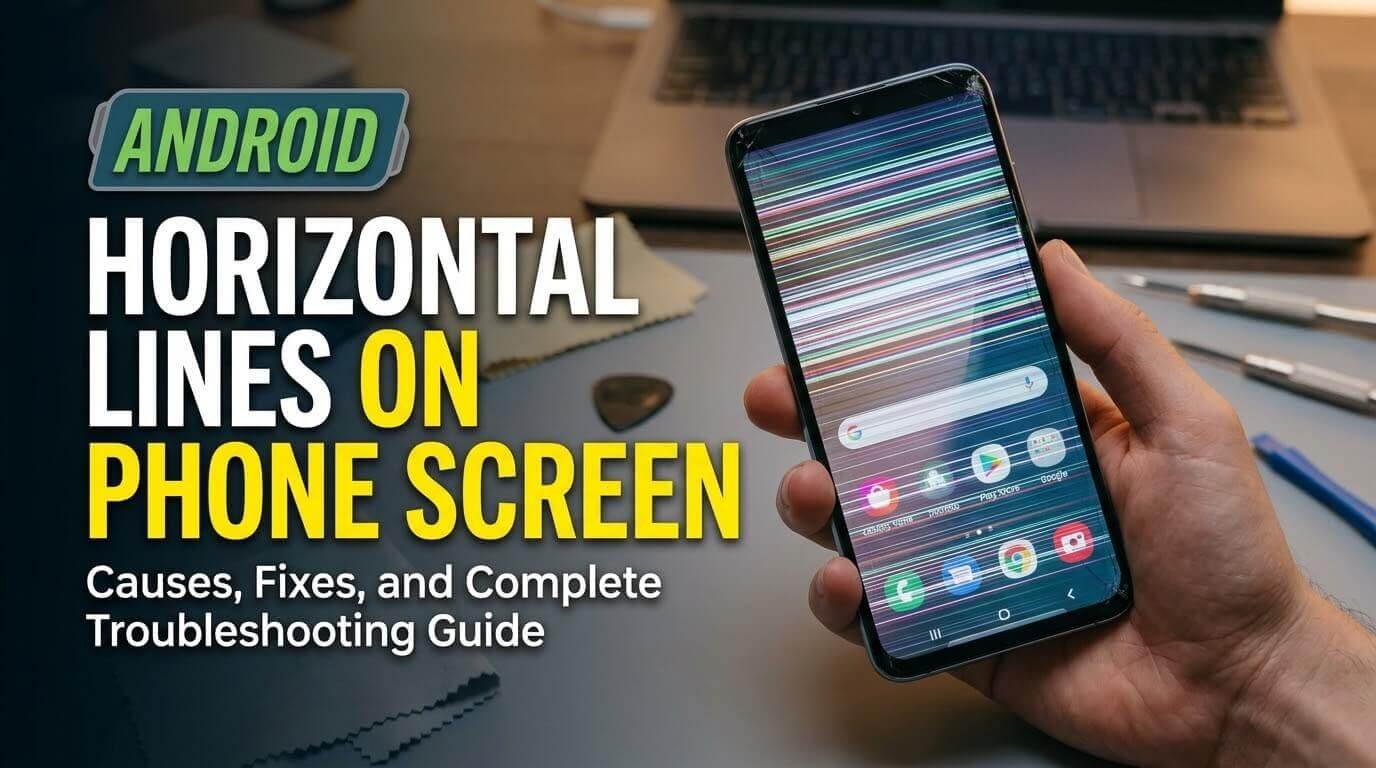
There are several reasons why horizontal lines appear on Android displays. One common cause is physical damage from dropping the phone or applying too much pressure to the screen. Internal display components can become damaged even when the front glass looks completely normal. Software problems, outdated system updates, overheating, and loose display connections can also cause unusual screen behavior.
Sometimes, the issue develops gradually, while in other cases, it appears suddenly after an accident or software update. Identifying the possible cause is the first step toward choosing the right solution.
3. Restart Your Android Phone
Restarting your smartphone is one of the easiest troubleshooting methods you can try. Temporary software errors can sometimes affect screen performance and create unusual visual problems. Press and hold the power button, select Restart, and allow your phone to start again. Once the device has restarted, carefully check whether the horizontal lines are still visible.
If they disappear, the problem may have been caused by a temporary software issue. However, if the lines remain unchanged, you should try additional troubleshooting methods because restarting cannot repair physical display damage.
4. Check Your Phone for Physical Damage
Physical damage is one of the most common reasons for display problems. Your phone may have been dropped, squeezed inside a pocket, or exposed to pressure without showing visible cracks. Even a small impact can damage internal display layers or connections. Carefully inspect the screen for cracks, dark spots, discoloration, and unusual marks. Also, check whether the lines become more noticeable when you touch a particular area.
Avoid pressing the screen to test it because additional pressure can make the damage worse. If you suspect physical damage, consider getting your smartphone inspected by a professional technician.
5. Update Your Android Operating System
An outdated Android operating system may contain bugs that affect display performance. Manufacturers regularly release software updates to improve device stability, security, and compatibility. Open Settings, find Software Update or System Update, and check whether a new version is available.
If an update is available, connect your phone to a reliable Wi-Fi network and install it according to the manufacturer’s instructions. Make sure your battery has enough charge before starting the process. Updating your phone may fix software-related screen problems, although it will not repair a damaged display panel.
6. Check Display Settings on Your Android Phone
Incorrect display settings can sometimes make screen problems more noticeable. Open your phone’s Settings application and review options such as brightness, refresh rate, screen resolution, color mode, and display temperature. If you recently changed any settings, try returning them to their default values. Some Android smartphones also provide adaptive brightness and eye comfort features.
Temporarily turning these options off may help you identify whether a setting is affecting the appearance of your screen. Remember that display settings cannot repair physical damage, but checking them is a useful troubleshooting step.
7. Reduce Your Phone’s Temperature
Overheating can affect the performance of different smartphone components, including the display. If your phone becomes extremely hot while gaming, charging, or running demanding applications, you may notice flickering or unusual visual behavior. Close unnecessary applications and stop using heavy games temporarily. Remove the phone case if it is trapping heat and allow the device to cool naturally in a safe place.
Avoid placing your phone in a refrigerator or using ice to cool it because sudden temperature changes can cause additional damage. If the lines continue after the phone cools down, investigate other possible causes.
8. Start Your Phone in Safe Mode
Safe Mode helps you identify whether a third-party application is causing problems on your Android device. When Safe Mode is active, most downloaded applications are temporarily disabled, allowing you to test the phone with its basic software. The steps vary between manufacturers, but you can usually open the power menu, press and hold the Power off option, and select Safe Mode if available.
Check whether the horizontal lines disappear. If they do, a recently installed application may be responsible. Uninstall suspicious or recently downloaded apps one at a time and restart your device normally.
9. Check Whether the Lines Appear in Screenshots
Taking a screenshot can help you understand whether the issue is related to the display hardware or software. Press the appropriate screenshot button combination for your Android phone and save the image. Open that screenshot on another device or computer. If the lines appear in the screenshot, the issue may be related to software or graphics processing.
If the screenshot looks normal on another device while the lines remain visible on your phone, the physical display panel or its connection may be responsible. This test is not perfect, but it can provide useful information before visiting a repair shop.
10. Remove Recently Installed Applications
Sometimes, a recently installed application can create display-related problems because of software conflicts or compatibility issues. Think about whether the horizontal lines started appearing after downloading a new game, screen filter, launcher, or customization application. Open Settings and navigate to Apps or App Management.
Review recently installed applications and uninstall anything suspicious that you do not need. Restart your smartphone and check the display again. If the problem disappears, the application may have been causing the issue. Always download applications from trusted sources to reduce the risk of software problems.
11. Clear Temporary System and Application Problems
Temporary application data can sometimes cause unusual behavior on Android devices. If you notice display problems while using only one application, try clearing that application’s cache. Open Settings, select Apps, choose the affected application, and find Storage.
Tap Clear Cache if the option is available. Avoid selecting Clear Data unless you understand that it may remove saved application information or require you to sign in again. If the lines appear everywhere, clearing an individual application’s cache is unlikely to solve the problem, but it may help when the issue is limited to one app.
12. Check Your Android Phone After Charging
Some users notice screen flickering or lines while charging their smartphones. This may be related to a faulty charging cable, damaged adapter, electrical interference, or another hardware issue. Disconnect the charger and check whether the lines disappear. If the problem occurs only while charging, try a compatible original charger and a different safe power outlet.
Stop using any cable or adapter that shows visible damage or unusual heating. If the display continues showing lines even after disconnecting the charger, the problem may have another cause and should be investigated further.
13. What Causes Green Horizontal Lines on Android Screens?
Green lines are commonly associated with display panel problems, particularly on some OLED and AMOLED smartphones. They may appear after physical impact, pressure, moisture exposure, or display component failure. In certain situations, users report that green lines appear after software updates, but a line that remains permanently visible can indicate a hardware issue.
Restarting or updating the phone may help if the cause is software-related. However, permanent green lines often require professional inspection and possibly screen replacement. Avoid pressing or bending the phone because this can make the damage worse.
14. How to Fix White or Black Horizontal Lines
White and black horizontal lines can have different causes depending on the phone model and the condition of the display. A temporary software problem may cause flickering white lines, while black lines or dark areas can indicate damaged display pixels or internal screen components. Restart your device, check for updates, and test the screen in Safe Mode.
If the lines remain visible on the startup screen or across every application, hardware damage becomes more likely. In that situation, a qualified technician should inspect the display before you spend money replacing other components.
15. Perform a Factory Reset Only When Necessary
A factory reset can help resolve serious software problems, but it should be your last troubleshooting option. It removes personal information, applications, and many device settings from the phone. Before resetting your smartphone, create a complete backup of your important photos, videos, contacts, messages, and documents.
Make sure you can access your Google Account and other important accounts afterward. Once everything is safely backed up, open Settings and find the Reset options. Follow the instructions provided by your manufacturer. If the horizontal lines are caused by physical screen damage, a factory reset will not fix them.
16. When Should You Replace Your Android Phone Screen?
Screen replacement may become necessary when the display has permanent lines, visible cracks, damaged pixels, or internal panel failure. If the lines remain visible after restarting, updating the software, and testing Safe Mode, professional inspection is recommended.
A technician can examine the display panel and its connections to identify the exact problem. Before approving a repair, ask for the total replacement cost and check whether the phone is still covered by a manufacturer warranty. Using an authorized repair center can help ensure that compatible replacement parts are installed correctly.
17. How to Prevent Horizontal Lines on Your Phone Screen
Preventing display damage is easier and often cheaper than repairing it. Use a good-quality protective case and screen protector to reduce the risk of damage from everyday accidents. Avoid keeping your phone under heavy objects or sitting with it inside a tight pocket.
Keep your device away from water, excessive heat, and direct sunlight for long periods. Use compatible charging accessories and install official software updates when available. These simple habits can help protect your smartphone and reduce the risk of display problems in the future.
18. Common Mistakes to Avoid When Fixing Screen Lines
Many smartphone users make mistakes when trying to repair display problems themselves. Pressing hard on the screen, bending the phone, opening the device without proper tools, or applying heat can cause additional damage. Some online videos recommend tapping the display or using pressure to remove green lines, but these methods are unreliable and may make the problem worse.
Avoid downloading unknown repair applications that promise to fix physical screen damage. Always identify the likely cause before attempting a repair, and contact a professional when hardware damage is suspected.
19. Frequently Asked Questions About Horizontal Lines on Android Screens
Why Are There Horizontal Lines on My Android Phone Screen?
Horizontal lines may appear because of a damaged display panel, loose internal connection, software problem, overheating, or physical impact. The exact cause depends on how and when the lines appear.
Can Software Updates Fix Horizontal Lines?
Yes, updates may fix lines caused by software bugs or compatibility problems. However, they cannot repair physically damaged display components.
Are Green Lines on Android Screens Permanent?
Not always. Some temporary display problems may disappear, but permanent green lines can indicate OLED or AMOLED panel damage that requires professional repair.
Can a Screen Protector Cause Horizontal Lines?
A damaged or poorly installed screen protector can create visible marks or patterns on the surface. However, it usually does not create actual electronic display lines. Remove or replace a damaged protector carefully to check whether the marks disappear.
Will Factory Reset Remove Horizontal Lines?
A factory reset may help with certain software problems, but it cannot repair damaged pixels, display panels, or internal screen connections.
Is It Safe to Continue Using a Phone With Horizontal Lines?
If the phone is working normally and has no other signs of damage, you may be able to use it temporarily. However, back up your important data and arrange an inspection if the lines spread, the display flickers, or touch functionality becomes unreliable.
20. Final Thoughts
Experiencing horizontal lines on phone screen android can be worrying, but understanding the possible causes makes troubleshooting easier. Start with simple solutions such as restarting your smartphone, checking display settings, installing updates, and testing Safe Mode. If the problem continues, inspect the phone for physical damage and consider professional repair.
Remember that permanent lines are often related to display hardware, so software solutions may not always work. Protect your device with a suitable case, avoid excessive pressure, and keep regular backups of important information.