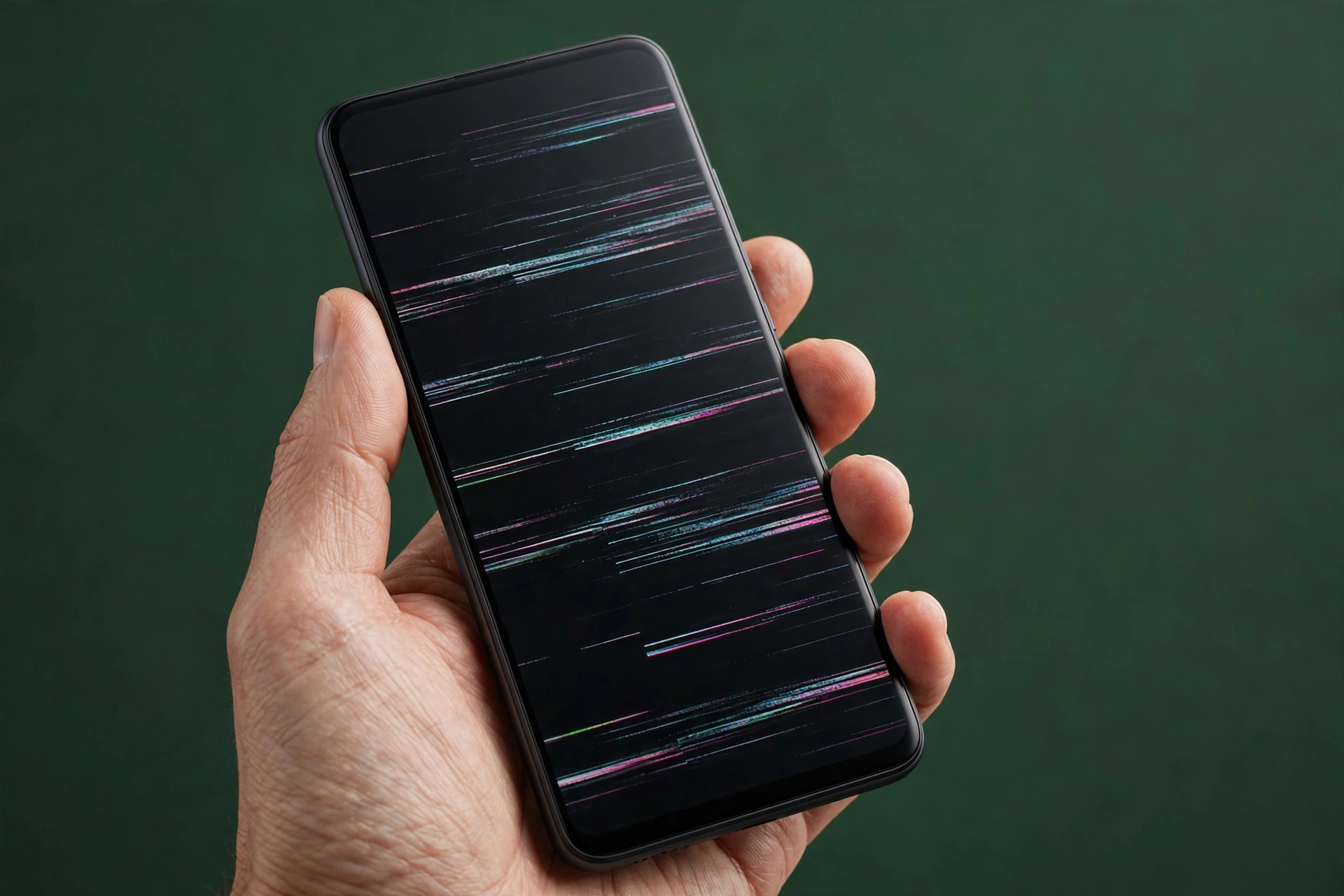
Your phone’s screen starts flashing, blinking or shaking for no clear reason. It may flicker only in one app, only at low brightness, or all the time — and it makes the phone hard to use. Fix Android Screen Flickering by finding the cause first, then applying the right fix.
Most flickering is caused by software: a bad app, a display setting, or a recent update. Some of it is hardware, and no setting can fix that. The steps below go from quickest to strongest, so you can stop as soon as the flicker is gone.
What Kind of Flickering Is It?
Before changing anything, notice when the flicker happens. The pattern points to the cause.
| What you see | Likely cause |
|---|---|
| Flicker only in one app | That app is the problem |
| Flicker everywhere, all the time | A display setting or the system |
| Flicker only at low brightness | Adaptive brightness or the brightness level |
| Flicker started after an update | The update, or an app that does not work with it |
| Flicker after a drop, with lines or dead spots | The screen itself is damaged |
| Flicker only while charging | The charger or cable |
If the screen has lines, black patches or dead touch spots after a drop, skip to the hardware section at the end. No app or setting repairs a damaged screen.
1. Restart the Phone
A restart clears temporary glitches, and it is the fastest test you have. Hold the power button, tap Restart, and wait for the phone to come back on. If the flicker is gone, it was a temporary glitch. If it comes back later, keep going through the steps below.
2. Turn Off Adaptive Brightness
Adaptive brightness changes the screen brightness on its own, and on some phones that constant adjusting looks like flickering — especially indoors or at low brightness. Go to Settings, then Display, and turn off Adaptive brightness. Set the brightness by hand to a middle level and watch the screen for a minute. If the flicker stops, leave adaptive brightness off.
3. Check the Refresh Rate
Some phones let the screen switch between 60Hz and 120Hz to save battery. That switching can show up as a brief flicker. Go to Settings, then Display, then Smooth display or Refresh rate, and set it to Standard (60Hz) instead of Adaptive or High. If the flicker stops, the refresh-rate switching was the cause. You can try the higher rate again later after a software update.
4. Test in Safe Mode
Safe Mode runs the phone with only its built-in apps, so it tells you whether a downloaded app is causing the flicker. Hold the power button, then hold the Power off option until the Safe Mode prompt appears, and tap OK. Use the phone for a few minutes.
If the flicker is gone in Safe Mode, a downloaded app is the cause — most often one you installed or updated recently. Restart the phone to leave Safe Mode, then remove the most recent apps one at a time until the flicker stops. Start with screen-related apps: launchers, screen filters, blue-light apps, and any app that draws over other apps.
If the screen still flickers in Safe Mode, the cause is a setting, the system, or the hardware — keep going.
5. Clear the Problem App’s Cache
If the flicker happens in one app only, that app’s stored data may be damaged. Go to Settings, then Apps, open the app, tap Storage, and tap Clear cache. Do not tap Clear data unless you are ready to sign in to that app again. Open the app and check whether the flicker is gone.
For the full steps, see How to Clear App Cache on Android.
6. Turn Off Developer Options Overlays
If Developer Options are turned on, two settings in there can disturb the screen: HW overlays and Show surface updates. Go to Settings, then Developer options. Turn off Show surface updates and HW overlays if either is on. If you do not need Developer Options at all, turn the whole section off at the top of the screen. Restart the phone after this change.
If Developer Options are not in your Settings, this step does not apply to you — skip it.
7. Update the Phone’s Software
A flicker that started after an update is often fixed by the next update. Go to Settings, then System, then System update, and install any update that is waiting. Also update your apps in the Play Store, especially the app that flickers. Restart the phone after the updates finish.
8. Free Up Space and Restart Again
A phone that is almost full can behave strangely, and a restart after clearing space sometimes settles display glitches too. Delete apps you no longer use and remove old downloads. For the safe way to do this without deleting your photos, see How to Free Up Space on Android. Then restart the phone once more.
9. Factory Reset — Last Resort Only
If nothing above works and the screen is not damaged, a factory reset is the last software fix. It erases everything on the phone, so back up your photos, contacts and files first. Go to Settings, then System, then Reset options, and tap Erase all data (factory reset). Set the phone up again without restoring your apps at first, and check the screen before you reinstall anything. If the flicker is gone on the clean phone, reinstall your apps one at a time to find the one that caused it.
When It Is a Hardware Problem
Software cannot fix a damaged screen. Take the phone for repair if any of these are true:
- The flicker started right after a drop or a knock, and it never stops.
- You can see lines, colour patches, or black spots on the screen.
- Parts of the screen do not respond to touch.
- The flicker gets worse when you press the screen gently.
A repair shop can check whether the problem is the screen or the cable that connects it. Do not open the phone yourself — that can make the damage worse and can end the warranty.
Frequently Asked Questions
Why does my Android screen flicker at low brightness?
At low brightness, adaptive brightness and the screen’s dimming can interact and look like flickering. Turn off adaptive brightness and set the brightness by hand. If the flicker only happens at the lowest brightness, keeping it one step higher is a fair fix.
Can an app make my screen flicker?
Yes. An app that draws over the screen — a launcher, screen filter, or blue-light app — can cause flickering. Safe Mode tells you quickly: if the flicker stops in Safe Mode, a downloaded app is the cause.
Does screen flickering mean my phone is dying?
Not always. Most flickering is software or a setting, and it goes away with the steps above. It only points to the screen itself when it follows a drop, comes with lines or dead spots, or never stops in Safe Mode.
Should I install a screen-fixing app?
No. No app can repair a flickering screen, and “screen fixer” apps cannot fix hardware. Use the steps in this guide instead, and if the screen is damaged, have it repaired.
Will a factory reset fix Fix Android Screen Flickering?
It fixes flickering only when the cause is software. Back up everything first, reset, and test the clean phone before reinstalling apps. If the screen still flickers on a clean phone, the problem is hardware.
Related guides: Android Apps Keep Crashing? How to Fix It — if the flickering app also closes on its own, the same steps often fix both.
1 thought on “How to Fix Android Screen Flickering (2026)”