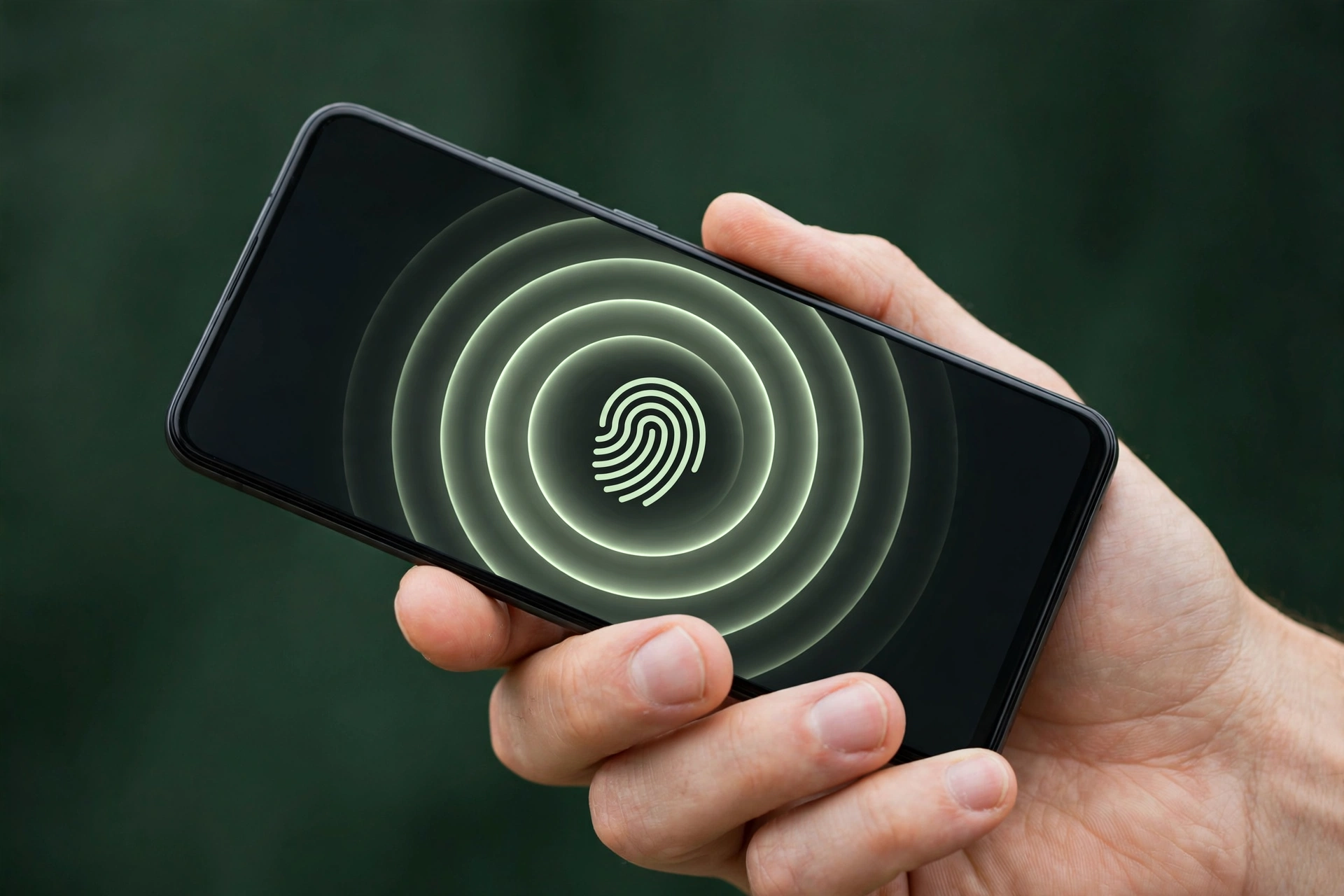
Fix Android Fingerprint Not Working by finding the fault first — touch the sensor and watch what happens. If it vibrates but does not recognise your finger, the sensor is alive and the fault is dirt, a screen protector, or a bad scan. If nothing happens at all, no vibration and no error, the sensor may be blocked by a setting, an app, or a hardware fault. Work through the fixes below in order, cheapest first, and you will know within a few minutes which one it is.
The honest point first: a fingerprint sensor that “stops working” is usually blocked by something sitting on top of it, not broken inside it. Dirt, oil, water, a thick screen protector, or a case edge all sit between your finger and the sensor, and the sensor cannot read through them. That is why the first fix below cleans the sensor before you change any setting.
Fix Android Fingerprint Not Working: Read the Fault First
| What you see | Most likely cause | Start here |
|---|---|---|
| Sensor does nothing — no vibration, no error | Sensor switched off, an app blocking it, or hardware fault | Fix 4, then Fix 6 |
| Sensor vibrates but rejects your finger every time | Dirty sensor or finger, a bad scan, or a screen protector | Fix 1, then Fix 2 |
| Works sometimes, then stops for a while | Wet or very dry skin, a conflicting app, or a temporary glitch | Fix 1, then Fix 5 |
| Stopped working right after an update | Restart locked it, or the update changed a setting | Fix 3, then Fix 4 |
| Stopped working after a screen replacement | Sensor not calibrated, or an incompatible screen | Fix 6 |
| Works with no case or protector, fails with them on | Protector or case blocking the in-display sensor | Fix 2 |
Fix 1: Clean the Sensor and Your Finger (Before Changing Anything)
1. Wipe the sensor — on the screen, the side button, or the back — with a soft, lint-free cloth. For a side-mounted sensor, a cloth lightly dampened with isopropyl alcohol also works.
2. Wash and dry your hands before you try again. Wet, very dry, or dirty fingers are the most common cause of a sensor that rejects you. For very dry skin, a little hand cream, wiped off the surface afterwards, helps.
3. Try again with a clean, dry finger. If the sensor reads it now, dirt was the whole fault — nothing else needs changing.
4. If it still rejects you, move to Fix 2 before you delete anything — a protector or a bad scan is the next most likely cause.
Fix 2: Take Off the Screen Protector and Case, Then Test Again
In-display sensors read your finger through the screen, so anything on top of the screen gets in the way. A thick glass protector, or one with air bubbles under it, can stop the sensor from reading at all.
1. Take the case off and peel the screen protector off, then try the sensor with a bare screen. If it works now, the protector was the fault — not the phone.
2. Samsung’s ultrasonic sensor, on Galaxy S and some A models, needs a protector certified for it. A normal thick glass protector will keep failing even after you re-register.
3. If you fit a new protector, re-register your fingerprints afterwards — the sensor reads through the new layer, and the old scan was made for the bare screen.
4. On Samsung, also turn on Settings > Display > Touch sensitivity while a protector is on. (Our guide to fixing a touch screen that does not respond covers protectors and touch sensitivity in detail.)
Fix 3: Delete Your Fingerprints and Register Them Again
If the sensor is clean and bare but still rejects you, the saved scan itself is usually the problem. A stored fingerprint can go stale when your skin changes, or the first scan was made too quickly.
1. Open Settings > Security and privacy > Biometrics > Fingerprints on Samsung (on Pixel: Settings > Security & privacy > Device unlock > Fingerprint & Face Unlock; on Xiaomi and OnePlus look under Fingerprints, face data & screen lock or Password & security — search Settings if the path differs on your phone).
2. Delete the fingerprint that fails, then add it again. Cover the whole fingertip, the edges, and the tip — not one flat press in the middle. On Pixel you can add the same finger more than once.
3. Register the finger you actually unlock with, in the position you hold the phone. A scan made with the phone flat on a table often fails when you hold it in your hand.
4. One thing is not a fault: after a restart, the phone REQUIRES your backup PIN before the fingerprint works again. That is a rule, not a bug — enter the PIN once and the sensor comes back.
5. If enrolment stalls partway and never finishes, stop here and go to Fix 6 — a scan that cannot complete is a hardware fault, not a setting.
Fix 4: Force Restart the Phone and Install Updates
A restart clears the temporary glitch that can freeze the service behind the sensor, and updates often fix fingerprint problems that an earlier update caused.
1. Press and hold Power + Volume Down for about 10–20 seconds until the phone restarts.
2. After the restart, enter your backup PIN first (see Fix 3 — the fingerprint stays locked until you do), then test the sensor.
3. Check for a system update and install the latest one, including the latest security patch. Fingerprint performance has improved with many updates, and some updates temporarily break it — the fix usually comes in the next one.
4. If the sensor worked before an update and not after it, the update is the likely cause, and a restart plus re-registration (Fix 3) is the fix to try before anything drastic.
Fix 5: Test in Safe Mode and Clear One App’s Cache
A downloaded third-party app can interfere with the sensor. Safe Mode runs the phone with only its own apps, so it tells you in one test whether an app is the fault.
1. Start the phone in Safe Mode and test the sensor. If it works in Safe Mode but not normally, a downloaded app is interfering — uninstall the most recent one first, then test again. (Safe Mode is explained step by step in our guide to fixing apps that keep crashing.)
2. If one app in particular seems tied to the problem, force-stop it and clear only its cache — do not tap “Clear storage” by mistake. (Our guide to clearing app cache on Android explains what cache is and is not.)
3. If the sensor fails in Safe Mode too, no app is the cause — go to Fix 6.
Fix 6: Run the Sensor Test and Check the Hardware
1. On Samsung, dial *#0*# and open the Sensor or fingerprint test. If the test does not respond at all, the sensor itself may have failed.
2. If the fingerprint stopped working immediately after a screen replacement, the problem may be an incompatible screen or a sensor that was never calibrated for the new screen. That is a service-centre job — no setting on the phone can calibrate it.
3. If enrolment stalls partway, or the sensor never responds in the test, that is a hardware fault, not a setting. Take the phone for a repair quote — inside the warranty period a genuine module is usually free.
4. If the test responds and the sensor reads in the test but not at the lock screen, go back to Fix 3 and re-register — the hardware works, and the saved scan is the problem.
What Fingerprint Problems Are Not (The Honest Limits)
It is not always broken hardware. If the sensor vibrates, it is alive — the fault is dirt, a protector, or a bad scan, and Fixes 1 to 3 are what separate the two.
It is not always one cause. A protector, a dirty finger, an update, and a replaced screen all stop the same sensor in different ways, and each needs its own fix — that is why the table at the top comes first.
A fingerprint-booster app cannot fix it. No app can clean a sensor, peel off a protector, re-register your finger, or calibrate hardware after a screen replacement — and no such app is recommended here.
What Not to Do
Do not push anything into the sensor or scratch at it. A soft cloth clears dirt; a sharp object can damage the sensor for good.
Do not factory reset to fix one fingerprint. A reset is the last step for a broken phone, not a scan tool — clean the sensor and re-register first (Fixes 1 and 3).
Do not install a “fingerprint fixer” or booster app. The built-in fixes above need none of that risk, and such an app cannot fix a protector, a bad scan, or a hardware fault.
Do not tap “Clear storage” when you mean “Clear cache”. Clearing storage resets the whole app; clearing cache only removes temporary data and keeps your photos.
Frequently Asked Questions
Why does my fingerprint work sometimes and fail other times?
Usually your finger or the sensor is wet, very dry, or dirty at that moment — or a case edge or protector shifts over the sensor. Clean the sensor, dry your hands, and re-register the finger covering the edges and tip.
Why does my phone ask for a PIN after a restart instead of my fingerprint?
Because every restart locks the fingerprint until you enter the backup PIN once. That is a rule, not a bug — enter the PIN and the sensor comes back.
Why did my fingerprint stop working after a screen replacement?
The new screen may be incompatible with the sensor, or the sensor was never calibrated for it. That needs a service centre — no setting on the phone can fix it.
Should I use a fingerprint booster app?
No. The fixes that work — cleaning the sensor, removing the protector, re-registering, and the sensor test — are all built into the phone. A booster app cannot fix a protector, a bad scan, or a hardware fault, and it asks for broad permissions to try.
See all our guides on the Browse APKs page.
Last updated: November 14, 2026