Introduction
An Android smartphone is an important part of everyday life. We use it for communication, work, entertainment, shopping, banking, social media, and many other activities. However, after using a phone for several months, its home screen can become crowded with applications, notifications, unnecessary files, and duplicate photos. This clutter can make it difficult to find important things and reduce productivity.
Android phone organization is a simple way to make your smartphone cleaner, easier to use, and more efficient. By arranging apps, creating folders, managing notifications, removing unnecessary files, and customizing your home screen, you can improve your daily phone experience. Whether you have a Samsung, Xiaomi, Google Pixel, Oppo, Vivo, or another Android device, this guide will help you organize your phone step by step using simple methods.
1. What Is Android Phone Organization?
Android phone organization means arranging your smartphone’s applications, files, settings, notifications, and home screen in a way that makes everything easier to find. Instead of keeping dozens of applications scattered across multiple screens, you create a simple structure that matches your daily activities. You can organize applications into folders, remove unnecessary shortcuts, manage storage, and keep important tools easily accessible.
A well-organized smartphone saves time and reduces frustration because you do not need to search through different menus every time you want to open an application. It also helps you focus on important tasks instead of constantly seeing distracting apps.
2. Why Organizing Your Android Phone Is Important
A cluttered smartphone can make everyday tasks more difficult than necessary. When your home screen is filled with applications, widgets, and notifications, finding important tools takes longer. You may also become distracted by social media applications, games, and unnecessary notifications. Organizing your Android phone creates a cleaner experience and makes it easier to focus on work, study, communication, or entertainment.
It can also help you identify applications you no longer use, unnecessary files that consume storage, and settings that need improvement. A simple organization routine can make your smartphone feel more comfortable and productive.
3. Start by Cleaning Your Android Home Screen
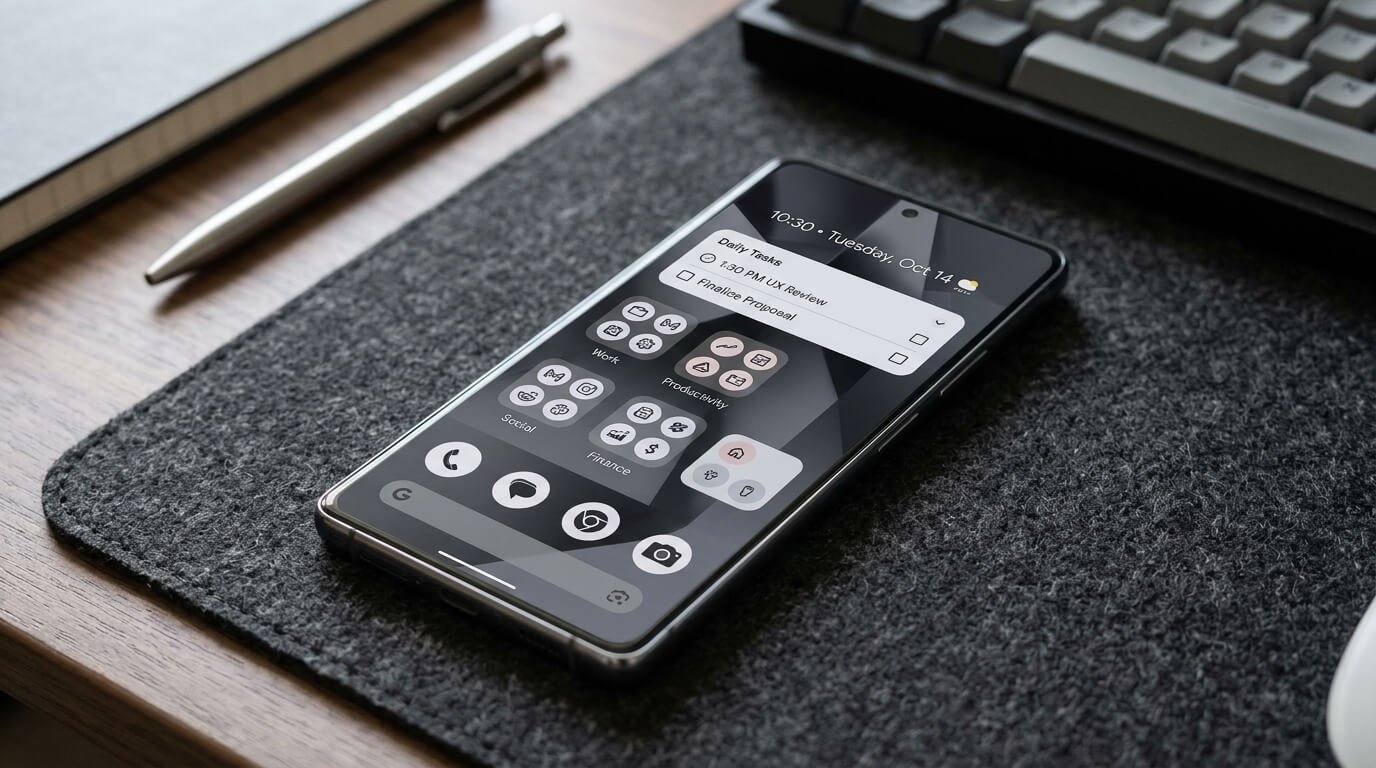
The home screen is the first place you see when unlocking your smartphone, so it should contain only the applications and information you use regularly. Begin by removing unnecessary application shortcuts, widgets, and icons. Keep frequently used applications such as Phone, Messages, Camera, Browser, and Settings easily accessible.
You can move less important applications into the app drawer instead of displaying them on the home screen. A clean home screen makes your phone look better and allows you to find important tools quickly. Avoid adding too many widgets because they can make the screen crowded and sometimes consume additional battery or system resources.
4. Organize Android Apps Into Folders
Creating application folders is one of the easiest ways to improve phone organization. You can group similar applications so that your home screen contains fewer icons. For example, create folders named Social Media, Work, Entertainment, Finance, Shopping, and Utilities. To create a folder on most Android phones, press and hold an application icon and drag it onto another application.
The phone will usually create a folder automatically. You can then rename the folder and add other related applications. Organizing applications into folders helps you find what you need without scrolling through several pages of icons.
5. Keep Frequently Used Apps on the Home Screen

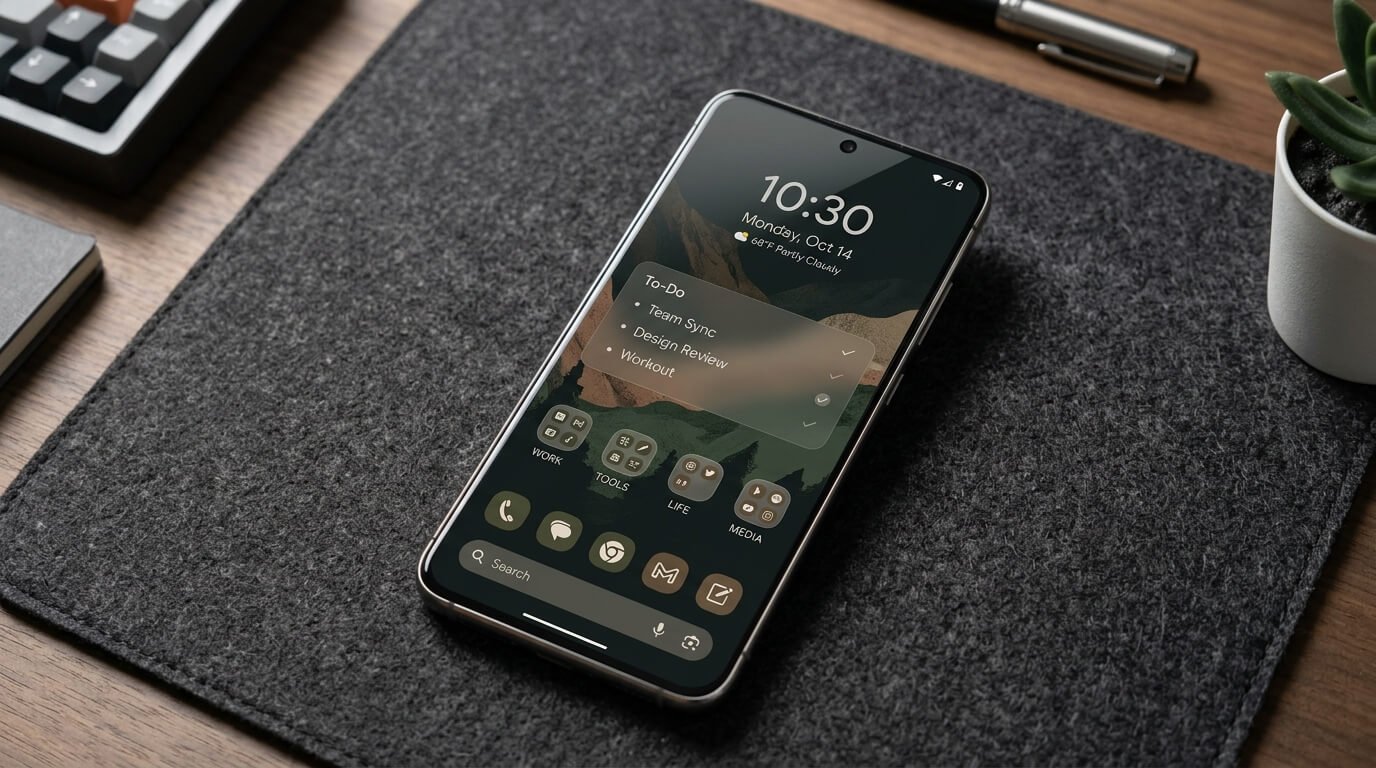
Your home screen should provide quick access to the applications you use most frequently. Think about the apps you open every day, such as WhatsApp, Google Chrome, Camera, YouTube, Gmail, or your preferred banking application. Place these applications in convenient positions where they are easy to reach. If your phone has a bottom dock, use it for your most important tools because the dock usually remains visible across home screen pages.
Avoid placing rarely used applications in these positions. Keeping essential apps accessible makes your smartphone more practical and reduces the number of unnecessary steps required to complete daily tasks.
6. Remove Apps You No Longer Use
Many Android users install applications for temporary purposes and forget to remove them afterward. Over time, these unused apps can take up storage space, create notifications, and make the app drawer difficult to manage. Review your installed applications and identify tools you have not used for several months. Uninstall applications that are unnecessary, especially those that perform similar functions.
Before removing an application, make sure it does not contain important information that you need to save. Regularly removing unused apps is an effective way to keep your Android phone clean, improve storage management, and reduce unnecessary digital clutter.
7. Organize Your Android Notifications
Notifications can become one of the biggest distractions on a smartphone. Messages, social media alerts, advertisements, games, and shopping applications may send notifications throughout the day. Instead of allowing every application to interrupt you, review your notification settings and disable alerts that are not important. Open Settings, select Notifications, and review the applications listed on your device.
You can turn off unnecessary alerts or customize notification categories where supported. Keep notifications enabled for essential communication, work, reminders, and security alerts. Managing notifications helps create a quieter smartphone experience and allows you to concentrate on important activities.
8. Use Widgets to Improve Phone Organization
Widgets provide useful information directly on your home screen without requiring you to open an application. Depending on your Android phone, you may be able to add weather widgets, calendars, clocks, notes, search bars, battery information, and music controls. Widgets can make your smartphone more useful when they are selected carefully.
For example, a calendar widget helps you see upcoming appointments, while a weather widget provides quick information about the day’s conditions. However, too many widgets can make your home screen crowded. Choose only the widgets that provide practical value and remove those you rarely use.
9. Organize Photos and Videos on Android
Photos and videos can quickly fill your smartphone’s storage. Organizing them into albums makes it easier to find important memories and prevents your gallery from becoming confusing. Open your Gallery or Google Photos application and create albums for different categories, such as Family, Travel, Work, Screenshots, Documents, and Events.
Delete duplicate pictures, blurry photos, and unnecessary screenshots. If you have a large media collection, consider backing up important files to cloud storage or a computer. A clean gallery saves time and makes it easier to locate the pictures you need when sharing them with friends or family.
10. Manage Android Storage and Delete Unnecessary Files
Storage management is another important part of Android phone organization. Downloaded files, temporary data, duplicate documents, and old videos may occupy valuable space. Open Settings and find Storage to review how much space different categories are using.
You can also use your phone’s File Manager application to review the Downloads folder and remove files you no longer need. Be careful when deleting documents because some may contain important information. If your phone has limited storage, consider moving large videos, pictures, and documents to an external storage device or a reliable cloud service.
11. Organize Your Android File Manager
The File Manager application is useful for managing documents, downloads, pictures, videos, and other files stored on your smartphone. However, many users leave everything inside the Downloads folder, making it difficult to locate important documents. Create separate folders for Work, Personal Documents, Images, Videos, and Downloads if your device supports folder management.
Move files into the appropriate locations and remove unnecessary items. You can also rename documents using simple and descriptive names. A well-organized file manager makes it easier to find information when you need it, especially if you regularly use your phone for business, education, or personal tasks.
12. Customize Your Android Wallpaper and Theme
Customizing your wallpaper and theme can make your smartphone feel more personal and organized. Choose a wallpaper that is simple and does not make application icons difficult to see. Many Android phones allow you to change colors, icon styles, fonts, and themes through their customization settings. A clean wallpaper with a balanced color scheme can make the home screen look more professional.
If your smartphone supports dark mode, you can enable it to change the appearance of supported applications and menus. Choose customization options that improve readability and comfort rather than adding unnecessary visual elements.
13. Arrange Your App Drawer Properly
The app drawer contains all the applications installed on your Android phone. Keeping it organized can make finding applications much easier, especially if you have many apps. Depending on your phone’s launcher, you may be able to sort applications alphabetically, create categories, hide certain apps, or customize the drawer layout.
Remove applications you no longer need and make sure the remaining apps are easy to locate. Some Android launchers also allow you to search for applications by name. Using the search feature can be faster than manually scrolling through a large list.
14. Use Android Digital Wellbeing to Reduce Distractions
Digital Wellbeing is a useful Android feature that helps you understand how you spend time on your smartphone. It may show application usage, screen time, notifications, and the number of times you unlock your device. You can use these statistics to identify applications that consume too much of your attention.
Setting app timers for social media, games, or entertainment applications can help you create healthier smartphone habits. Focus Mode may also allow you to pause distracting applications temporarily. These tools support phone organization by helping you manage not only your screen but also your daily digital activities.
15. Organize Your Contacts and Messages
Contacts and messages are important parts of everyday smartphone use. Keeping your contact list organized makes it easier to communicate with friends, family members, customers, and colleagues. Remove duplicate contacts, update outdated phone numbers, and add names that clearly identify each person. You can create contact groups where supported, such as Family, Friends, Work, or Clients.
Similarly, regularly delete unnecessary message conversations while keeping important information. If your phone supports message categories or pinned conversations, use them to keep important messages accessible. Backing up your contacts and messages is also recommended before making major changes.
16. Create a Productive Android Home Screen Layout
A productive home screen should be designed around your daily routine. Instead of filling every available space with icons, create a layout that allows you to access important applications quickly. Place communication tools and essential applications in the main area, while keeping less frequently used apps in folders or the app drawer.
Add only useful widgets, such as a calendar, weather information, or a to-do list. You can also create separate home screen pages for different activities, such as work, personal use, and entertainment. The goal is to make your phone easier to use without creating additional clutter.
17. Improve Android Phone Security and Privacy
Phone organization should also include security and privacy settings. Review which applications have access to your camera, microphone, location, contacts, and files. Remove permissions from applications that do not need them. Set a strong screen lock using a PIN, password, fingerprint, or supported facial recognition feature. Keep your Android operating system and applications updated to receive security improvements.
You should also review applications installed from unknown sources and remove anything suspicious. A secure smartphone protects your personal information and creates a safer digital environment for everyday activities.
18. Organize Your Android Phone for Work and Business
If you use your Android phone for business, organizing it can improve productivity and communication. Create a dedicated folder for business applications, including email, messaging, document editing, payment tools, calendars, and task management applications. Keep important work contacts easily accessible and use calendar reminders for meetings or deadlines.
Store business documents in clearly named folders and back up important files regularly. You can also use separate work and personal profiles on supported Android devices. Keeping work-related applications organized helps you complete tasks faster and reduces the risk of losing important business information.
19. Best Android Organization Apps
Several applications can help you improve smartphone organization, depending on your needs. Google Keep is useful for quick notes, lists, and reminders. Google Calendar helps you manage appointments and schedules. Google Drive allows you to store and organize documents online. Files by Google can help you review files and manage storage on supported devices.
Microsoft To Do is another option for managing tasks and creating reminders. You do not need to install every organization application available. Choose a small number of reliable tools that solve specific problems and avoid installing unnecessary apps that create more clutter.
20. How Often Should You Organize Your Android Phone?
Organizing your smartphone does not need to be a complicated process. A short weekly review can help you remove unnecessary screenshots, check downloaded files, manage notifications, and review recently installed applications. Every month, you can examine your storage usage, remove unused apps, update folders, and clean up your gallery.
You should also review privacy settings and confirm that important data is backed up. Creating a regular organization routine prevents clutter from building up over time. A few minutes of maintenance can keep your smartphone clean, efficient, and easy to use for months.
21. Common Android Phone Organization Mistakes
One common mistake is installing too many applications to solve simple problems. For example, you may download several cleaning apps, launchers, reminder tools, and file managers even though your Android phone already includes similar features. Another mistake is keeping unnecessary widgets and application shortcuts on the home screen. Some users also ignore notification settings and allow every application to send alerts.
These habits create digital clutter and make smartphones harder to use. Instead, focus on simple organization methods, remove unnecessary applications, and use built-in Android features whenever possible. Keeping your system simple usually provides a better experience.
22. Frequently Asked Questions About Android Phone Organization
How Do I Organize My Android Phone Quickly?
Start by removing unused applications, creating folders, organizing your home screen, and disabling unnecessary notifications. You can also delete duplicate photos and unwanted files to improve storage management.
How Can I Make My Android Phone Look Clean?
Use a simple wallpaper, keep only essential applications on your home screen, create folders for similar apps, and remove unnecessary widgets. A clean layout makes your smartphone easier to use.
Does Organizing Android Apps Improve Performance?
Organizing application icons does not directly increase processing speed. However, removing unnecessary applications, managing storage, and limiting background activity may help improve the overall smartphone experience.
How Do I Create Folders on Android?
Press and hold an application icon, then drag it onto another application. Most Android launchers automatically create a folder that you can rename and customize.
What Is the Best Android App for Organization?
Google Keep, Google Calendar, Google Drive, Files by Google, and Microsoft To Do are useful tools for notes, schedules, files, and tasks. The best choice depends on your personal needs.
How Often Should I Clean My Android Phone?
A quick weekly cleanup is helpful. Review applications, notifications, downloads, and screenshots regularly. A more complete organization routine once a month can help maintain a clean smartphone.
Conclusion
Android phone organization is a simple but effective way to improve your smartphone experience. By creating application folders, cleaning your home screen, managing notifications, organizing photos, removing unnecessary files, and customizing your settings, you can make your phone easier to use and more productive. You do not need expensive applications or complicated tools to achieve a clean smartphone.
Most Android devices already include useful features for managing apps, files, storage, and notifications. Start with a few small changes and maintain a regular organization routine to enjoy a cleaner, smarter, and more efficient Android phone.