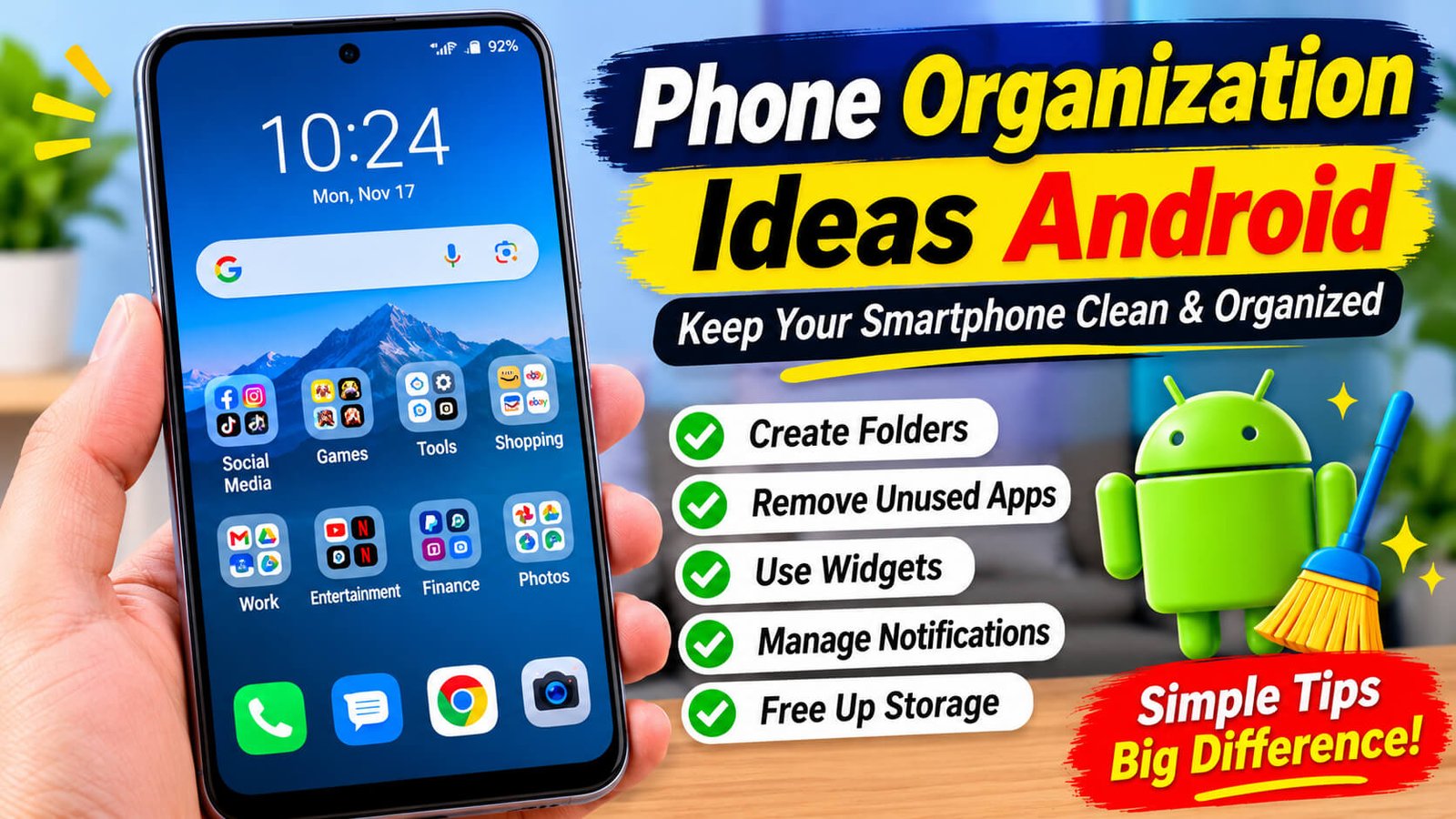
Smartphones have become an important part of everyday life. We use them for communication, work, entertainment, shopping, social media, photography, and many other activities. However, as we install more applications and save more pictures, our phones can become messy and difficult to manage. Finding a particular app, important document, or favorite photo can take more time than expected. That is why phone organization ideas android users can follow are becoming increasingly helpful for people who want a cleaner and more efficient smartphone experience.
Organizing an Android phone does not require advanced technical knowledge or expensive applications. Small changes, such as creating folders, removing unused apps, arranging widgets, managing notifications, and cleaning unnecessary files, can make a noticeable difference. A well-organized phone is easier to use, saves time, and can help users focus on the things that matter most. Whether you have a Samsung, Google Pixel, Xiaomi, Motorola, or another Android device, the following ideas can help you create a more organized mobile experience.
1. Start by Cleaning Your Home Screen
The home screen is the first thing you see when unlocking your smartphone, so it should be simple and useful. Many Android users place every new application on their home screen, creating a crowded layout with too many icons. This can make it difficult to locate important apps and can also make the phone feel visually overwhelming. Start by removing applications that you rarely use from the home screen while keeping them installed on your device. Your home screen should contain only the apps you use regularly, such as your phone, messaging app, browser, camera, calendar, and other essential tools.
A clean home screen can improve the overall experience of using your Android phone. You can arrange your most important applications near the bottom of the screen for easier access with one hand. Keeping unnecessary shortcuts away from the main screen allows you to enjoy your wallpaper and makes your smartphone look more organized. This simple approach is one of the most effective phone organization ideas android users can implement without downloading anything.
2. Create App Folders Based on Categories
App folders are an excellent way to organize applications that belong to similar categories. Instead of keeping separate icons for every application, you can group them into folders such as Social Media, Work, Shopping, Entertainment, Finance, Photography, and Tools. This method reduces the number of icons visible on your home screen and makes it easier to locate specific apps when needed.
For example, you can place Facebook, Instagram, TikTok, and other social applications inside a Social folder. Banking applications can be placed in a Finance folder, while video streaming applications can be grouped under Entertainment. Most Android launchers allow users to create folders by dragging one application icon over another. You can then rename each folder according to its purpose. Using meaningful folder names makes navigation faster and keeps your phone looking neat.
3. Keep Your Most Important Apps in the Dock
The dock is usually the fixed row of applications at the bottom of your Android home screen. These apps remain accessible even when you move between different home screen pages. You can use the dock for applications that you open several times every day, such as Phone, Messages, Chrome, Camera, or WhatsApp.
Keeping only your most frequently used applications in the dock can improve your daily workflow. Instead of searching through folders or scrolling across multiple pages, you can open essential apps with a single tap. Depending on your Android launcher, you may be able to customize the number of icons displayed in the dock. Choose applications that genuinely save time and avoid placing unnecessary shortcuts there.
4. Use Widgets to Make Your Home Screen More Useful
Widgets provide information directly on your home screen without requiring you to open an application. Android supports different widgets, including clocks, calendars, weather forecasts, battery information, music controls, and reminders. Adding a few useful widgets can make your smartphone more practical and reduce the time spent opening multiple applications throughout the day.
For example, a calendar widget can display upcoming appointments, while a weather widget helps you check daily conditions quickly. A notes widget can keep important reminders visible, and a clock widget can provide information about different time zones. However, adding too many widgets can make your home screen crowded. Select only the widgets that provide useful information and arrange them in a way that leaves enough space for your favorite apps.
5. Organize Apps by Daily Usage
Another useful method is organizing applications according to how frequently you use them. Apps that you open every day should be easy to access, while applications that you use occasionally can be placed in folders or on secondary home screen pages. This approach helps reduce unnecessary searching and makes your phone more convenient.
You can divide applications into three groups: daily apps, weekly apps, and occasional apps. Daily apps might include messaging, navigation, banking, and email. Weekly apps could include shopping, editing, or productivity tools. Occasional apps might include travel applications, specialized utilities, or games. Organizing apps according to usage habits creates a practical layout that matches your lifestyle instead of simply arranging icons randomly.
6. Remove Apps You No Longer Need
Unused applications are one of the main reasons smartphones become cluttered. Many people download apps for a specific purpose and forget about them after a few days. These applications may occupy storage space, send notifications, or run background processes depending on their permissions and settings. Reviewing your installed applications regularly can help keep your device clean.
Open your Android settings and review the installed applications list. Identify apps that you no longer use and uninstall them when appropriate. Before removing an application, make sure it does not contain important data that you need to keep. Some applications can also be disabled if uninstalling them is not possible. Removing unnecessary apps is a practical way to simplify your device and make application management easier.
7. Choose a Minimal Wallpaper
Your wallpaper can influence how organized your home screen looks. Busy wallpapers with bright colors, detailed images, or many visual elements can make app icons harder to recognize. A simple wallpaper with a clean design can create a more comfortable appearance and make your home screen easier to navigate.
Consider using a minimal wallpaper with soft colors, a simple pattern, or a photograph that does not contain too many details. You can also choose different wallpapers for your lock screen and home screen if your Android device supports this feature. A clean wallpaper works especially well when combined with app folders, widgets, and a limited number of icons.
8. Organize Notifications Properly
Notifications can quickly become distracting when every application sends alerts throughout the day. Social media apps, shopping platforms, games, news applications, and other services may display messages that are not important. Managing notifications is one of the most useful phone organization ideas android users can follow because it improves both the appearance and usability of the device.
Open your phone’s notification settings and review which applications are allowed to send alerts. Keep notifications enabled for important services such as calls, messages, work emails, and reminders. Disable unnecessary alerts from apps that frequently send advertisements or promotional messages. Depending on your Android version, you may also be able to customize notification categories, sounds, and priority levels. This allows you to stay informed without being interrupted constantly.
9. Create a Separate Home Screen for Work
If you use your Android phone for both personal activities and professional tasks, creating a dedicated work screen can help you maintain better organization. You can place work-related applications such as email, calendar, document editors, video meeting tools, task managers, and business messaging apps on a separate page.
This arrangement makes it easier to switch between work and personal activities. During working hours, you can focus on applications related to your professional responsibilities without searching through entertainment or social media apps. When work is finished, you can return to your personal home screen. Some Android devices also offer work profiles that separate professional applications and data from personal information.
10. Use the App Drawer Instead of Filling Every Screen
The Android app drawer provides access to all installed applications without requiring every app to appear on your home screen. Depending on your launcher, the app drawer may support alphabetical sorting, search, categories, or customized arrangements.
Using the app drawer allows you to maintain a clean home screen while keeping all applications available. You can place your favorite apps on the main screen and use the app drawer to find everything else. Search functionality is particularly helpful when you have many applications installed because you can type the app name instead of scrolling through a long list.
11. Organize Photos and Videos Into Albums
Photos and videos can consume a significant amount of storage and become difficult to find when they are not organized. Android users can create albums or folders for different types of images, such as Family, Travel, Work, Screenshots, Documents, and Personal Photos. This approach makes it easier to locate specific pictures without searching through thousands of files.
You can use your phone’s gallery application or Google Photos, depending on your preferences. Review screenshots regularly and remove unnecessary images, duplicate files, and blurry photographs. Before deleting anything important, ensure that you have a backup if needed. Organizing your media library can save time and improve the overall experience of browsing your memories.
12. Clean Your Downloads Folder
The Downloads folder often contains files that users forget about after downloading them. Documents, images, APK files, PDFs, videos, and other files can accumulate over time and make it difficult to find important information. Regularly reviewing your downloads folder is a simple way to keep your Android phone organized.
Open your file manager and check the Downloads folder. Remove files that you no longer need, especially duplicate documents, temporary images, and old installation files. If you have important documents, move them into clearly named folders such as Work Documents, Personal Files, Receipts, or Study Materials. This organization makes file management easier and reduces unnecessary clutter.
13. Use a Better File Manager
A file manager is an important tool for managing storage on an Android smartphone. It allows users to browse folders, move files, rename documents, delete unnecessary items, and organize downloads. Some Android phones include a built-in file manager, while others provide access to applications such as Files by Google.
A good file manager can help you understand which folders contain your important data. You can organize documents by category, move large videos to external storage when supported, and review files that are taking up space. Keeping your files organized is particularly useful for people who use their smartphones for work, school, photography, or content creation.
14. Make Use of Android Search
Android search can save a lot of time when your smartphone contains many applications, contacts, settings, and files. Instead of manually searching through different folders, you can use the search feature available in your app drawer, launcher, or device settings.
For example, if you want to open a particular application, simply type its name into the search bar. You can also use settings search to locate options such as Wi-Fi, battery optimization, notification management, or display settings. Learning how to use search effectively can make your Android phone easier to navigate, even if you have a large number of installed apps.
15. Customize Quick Settings
Quick Settings is the panel that appears when you swipe down from the top of your Android screen. It provides quick access to important controls such as Wi-Fi, Bluetooth, mobile data, airplane mode, screen recording, flashlight, battery saver, and other available features.
You can often customize the Quick Settings panel by rearranging tiles according to your daily needs. Place frequently used controls near the beginning so that they are easier to access. Remove or move controls that you rarely use, depending on the options available on your device. A customized Quick Settings panel can make common tasks faster and reduce the need to open the Settings application.
16. Keep Your Phone Storage Under Control
Storage management is another important part of keeping an Android smartphone organized. When storage becomes almost full, you may experience problems downloading files, installing updates, saving photographs, or using certain applications. Reviewing storage usage regularly can help prevent these problems.
Open Settings and find the Storage section. Depending on your device, you may see categories such as applications, images, videos, audio, documents, and system files. Review the largest categories and remove unnecessary items when appropriate. Avoid deleting files you do not recognize because some may be required by applications or the operating system. If you need additional space, consider transferring important photographs and videos to a trusted cloud service or external storage device.
17. Use a Calendar and Reminder System
A calendar widget or reminder application can help organize your daily responsibilities. Instead of relying on memory, you can create reminders for appointments, meetings, deadlines, birthdays, shopping lists, and other activities. This is particularly useful for people who manage work, studies, family responsibilities, or multiple projects.
Android users can choose from several calendar and reminder applications depending on their preferences. A calendar widget can display upcoming events on the home screen, while reminder notifications can help ensure that important tasks are not forgotten. Keeping your schedule organized can make your smartphone more useful as a daily planning tool.
18. Try a Minimalist Android Launcher
Android launchers allow users to customize the appearance and layout of their home screens. Some launchers focus on simplicity, while others offer extensive customization options, icon packs, gestures, folders, and widgets. A minimalist launcher can be helpful if you want fewer distractions and a cleaner smartphone interface.
Before installing a third-party launcher, review its permissions, developer information, user reviews, and privacy practices. You can also experiment with your phone’s default launcher settings because many Android devices already provide options for changing icon sizes, home screen layouts, app grids, and folder appearance. A minimalist layout can make your device feel fresh without requiring a new phone.
19. Create a Weekly Phone Organization Routine
Organizing your smartphone once is helpful, but maintaining it regularly is even more important. A short weekly routine can prevent applications, files, photographs, and notifications from becoming messy again. You do not need to spend hours cleaning your phone; a few minutes can be enough to review the most important areas.
During your weekly cleanup, remove unnecessary screenshots, review downloaded files, uninstall unused applications, clear unwanted notifications, and check your home screen. You can also review upcoming calendar events and make sure your important apps remain easy to access. Consistency is the key to maintaining a clean Android smartphone.
20. Protect Your Organized Phone With a Backup
A well-organized smartphone contains important information, including photographs, contacts, documents, messages, and application data. Creating regular backups can help protect this information if your phone is lost, damaged, reset, or replaced.
Android devices may offer backup options through Google services or manufacturer-specific systems. Review the available backup settings and choose the information you want to protect. You may also save important files to a trusted cloud storage service or external device. Remember that a backup should be checked occasionally to make sure it contains the information you expect.
Frequently Asked Questions
How can I organize my Android phone quickly?
Start by removing unnecessary home screen icons, creating app folders, uninstalling unused apps, and disabling unwanted notifications. Organize your photographs and downloads afterward.
What is the best way to organize Android apps?
Grouping applications into folders according to categories such as Social Media, Work, Finance, Entertainment, and Tools is one of the easiest methods. Keep frequently used applications on the main home screen.
How can I make my Android home screen look cleaner?
Use a simple wallpaper, fewer app icons, useful widgets, and organized folders. Avoid placing too many shortcuts on the same screen.
Do phone organization apps help?
Some phone organization applications provide additional customization, file management, and home screen features. However, most basic organization tasks can be completed using Android’s built-in settings and applications.
Does organizing my phone improve performance?
Organizing your phone can make it easier to navigate and may help free storage space when you remove unnecessary files and applications. However, rearranging icons alone does not necessarily increase processing speed.
Conclusion
Following these phone organization ideas android users can apply every day can help transform a cluttered smartphone into a cleaner, more practical, and easier-to-use device. From creating app folders and managing notifications to organizing photographs, downloads, widgets, and storage, small changes can make a meaningful difference. The best phone organization system is one that matches your daily habits and remains easy to maintain. Spend a few minutes organizing your Android phone regularly, and you can enjoy a more productive and comfortable mobile experience.