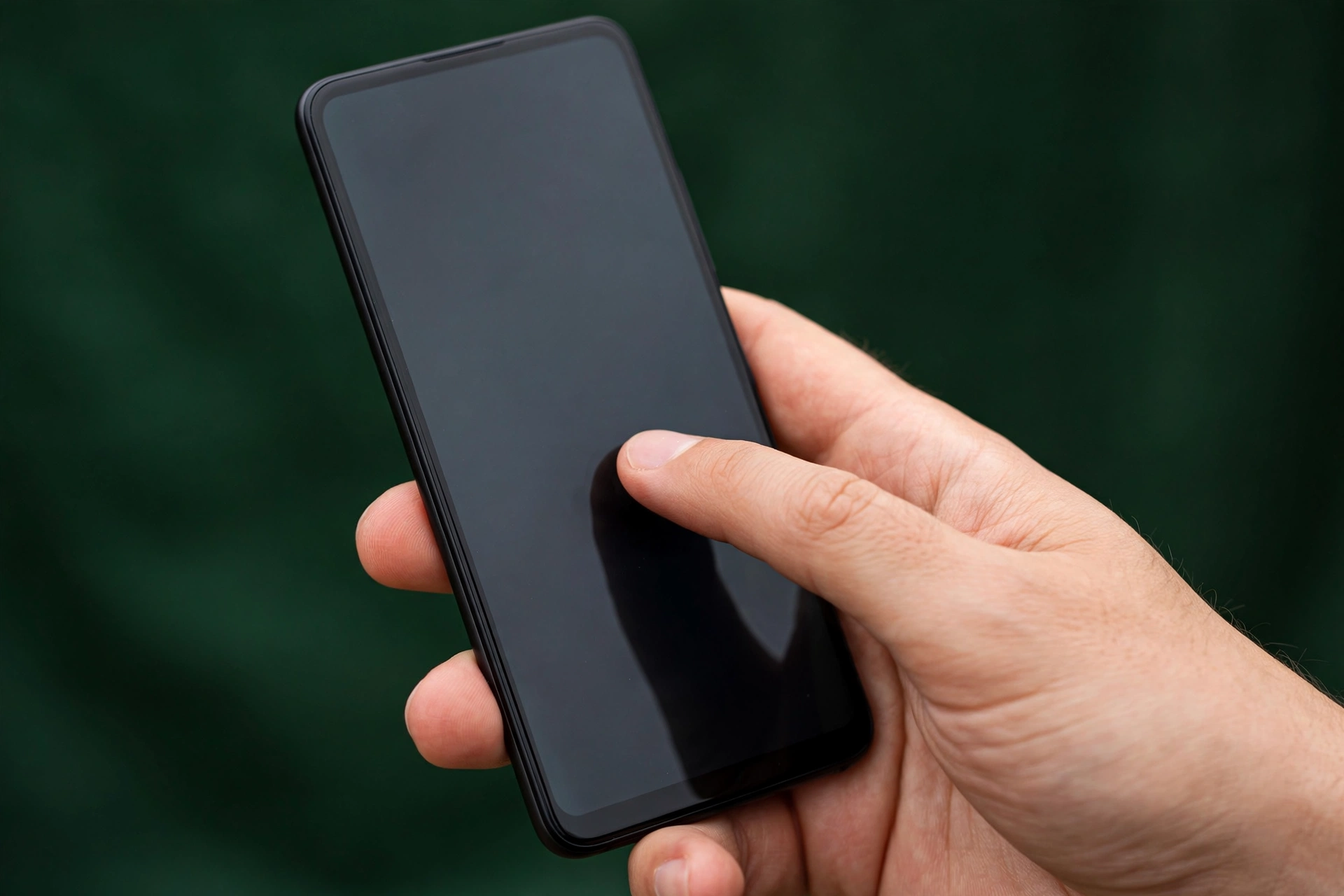
Fix Android Touch Screen Not Working by reading the fault first — a screen that is dead everywhere, a screen with one dead zone, a screen that taps by itself, and a screen that is simply frozen are four different faults, and the fix for one never fixes the other. Work through the fixes below in order, cheapest first, and you will know within a few minutes whether it is a protector, a setting, a stuck app, or the screen itself.
The honest point first: a touch screen that stops responding is rarely a broken screen. Most of the time the screen is covered, wet, or blocked by a setting, or the phone itself has frozen and the touch layer is fine. That is why the first test below checks what the phone actually does before you touch any setting.
Fix Android Touch Screen Not Working: Read the Fault First
| What you see | Most likely cause | Start here |
|---|---|---|
| Nothing responds, but the picture is normal | Frozen software, or the touch layer is blocked | Fix 1, then Fix 2 |
| One part of the screen never responds, the rest works | A dead zone in the touch layer, or a cracked protector over that spot | Fix 2, then Fix 6 |
| The screen taps by itself, opens apps, types on its own | Ghost touches — moisture, a bad charger, or a faulty protector | Fix 2, then Fix 3 |
| Touch works in one app, not in another | That app is frozen, not the screen | Fix 5 |
| Touch is slow, misses taps, or needs hard presses | Touch sensitivity is low, or storage is almost full | Fix 3, then Fix 4 |
| Nothing responds anywhere, even after a restart, even in Safe Mode | A fault in the touch screen itself | Fix 6, then repair |
Fix 1: Force Restart the Phone (You Do Not Need the Touch Screen)
A force restart fixes most screens that froze while the phone was on, and you do not need touch to do it — only the buttons.
1. On a Pixel, press and hold the Power button for about 30 seconds until the phone restarts.
2. On a Samsung Galaxy, press and hold the Side button and Volume down together for about 7 seconds until the phone restarts.
3. On other phones, hold the Power button for about 30 seconds — menu names and button combinations differ by phone maker, so if the phone does not restart, search for your model and “force restart” in Settings on another device.
4. If the touch works again after the restart, the screen was never broken — the phone had frozen. If it freezes again often, check Fix 5.
Fix 2: Take Off the Case and Screen Protector, Then Clean and Dry the Screen
A badly fitted protector, a tight case pressing on the edges, or a wet or dirty screen can block taps, create dead zones, and even cause ghost touches. Test the bare screen before changing anything else.
1. Take the case off and use the phone bare for a few minutes. A case that presses on the screen edges can cause false touches.
2. Take the screen protector off, even if it looks fine. A cracked or lifting protector over one spot is the most common cause of a single dead zone — and if touch comes back when it is off, the protector was the problem, not the phone.
3. Wipe the screen with a clean, dry, soft cloth, and make sure your hands are dry too. Water, sweat, grease and lotion all confuse a capacitive touch screen.
4. Take off gloves and remove any screen stickers. If the screen still taps by itself after this, unplug the charger and test again — a faulty charger is a known cause of ghost touches. (Our guide to fixing an Android screen that flickers covers the display side of screen trouble; this guide is about touch.)
Fix 3: Raise Touch Sensitivity and Check the Settings That Make Taps Feel Broken
If taps register only sometimes, or you have to press hard, the phone may be set for a bare screen while you are using a protector—or an accessibility setting may be changing how taps work.
1. On a Pixel, open Settings > Display & touch > Touch sensitivity and turn on Screen protector mode.
2. On a Samsung Galaxy, open Settings and search for “Touch sensitivity”, then turn it on.
3. Check that TalkBack is off. When TalkBack is on, a single tap only selects an item and a double tap activates it — which feels exactly like a broken touch screen. Search for “TalkBack” in Settings and turn it off if you did not mean to turn it on.
4. Also check for a magnification shortcut. If a triple tap zooms the screen instead of tapping, magnification is on — turn it off in Settings > Accessibility.
5. If the phone feels hot, let it cool down first. After gaming, long video recording, or fast charging, the screen can lag, miss taps, or show ghost touches until it cools. (Our guide to fixing an overheating Android phone covers the cooling side in detail.)
Fix 4: Update, Free Space, and Check Storage
1. Update Android and your apps. If the touch trouble began after a software problem rather than a drop or a splash, an update may carry the fix — check for a system update first, then update apps from the Play Store.
2. Check free storage. A phone that is nearly full can start having problems when less than roughly 10% of storage is free — touch can lag and apps can freeze. Free up space before anything else if storage is almost full. (Our guide to freeing up space without deleting apps covers this without losing anything.)
3. Restart the phone after the updates, then test the same spot that failed before.
Fix 5: Test in Safe Mode to Rule Out an App
If the touch trouble started after installing an app, or only happens in one app, Safe Mode is worth trying. It temporarily turns off downloaded third-party apps while the core Android system keeps running.
1. Hold the power-off icon until Safe Mode appears, then test the touch.
2. If the touch suddenly works normally in Safe Mode, a downloaded app is the cause — often a screen filter, a launcher, or a “touch booster” app. Uninstall the most recent one first, then test again. (Safe Mode is explained step by step in our guide to fixing apps that keep crashing.)
3. If only one app shows the problem, that app is frozen, not the screen. Force-stop it and clear only its cache — do not tap “Clear storage” by mistake. (Our guide to clearing app cache on Android explains what cache is and is not.)
Fix 6: Run a Touch Test, and Back Up Before a Repair
1. Run your phone’s touch test to find dead spots. On a Pixel 9, use Touch diagnostics in Settings; on a Samsung Galaxy, use the touch test in the Samsung Members app. Test every part of the screen — if the same spot always fails, that is a dead zone, not a setting.
2. If the screen is dead but still shows a picture, plug in a USB mouse through a USB-C adapter. The mouse lets you use the phone, back up your photos and data, and turn off the screen lock before a repair — do the backup first, not after.
3. If the failure started right after a drop or a splash, or the glass is cracked over the dead spot, that is not a home fix — it needs a repair quote.
What Touch Screen Problems Are Not (The Honest Limits)
It is not always the screen. If the picture is fine and nothing responds, the fault is usually a frozen phone, a protector, or a setting — and Fix 1, Fix 2 and Fix 3 are what separate the two.
It is not always software. If one spot never responds in any app, on any setting, in Safe Mode, after a restart, that is the point to stop changing settings and book a repair.
A fixer app cannot fix it. No app can remove a protector, dry a wet screen, or repair a dead zone — and “touch booster” apps are themselves a common cause of touch trouble in Safe Mode tests.
What Not to Do
Do not install a “touch fixer” or repair-tool app. The built-in fixes above need none of that risk, and repair tools ask for broad permissions and charge for a fix the phone already has.
Do not press hard on the screen, bend the phone, or open it. That turns a settings problem into a hardware one.
Do not factory reset to fix one dead spot. A reset is the last step for a broken phone, not a touch tool — check the protector, the sensitivity setting, and Safe Mode first (Fix 2, Fix 3, Fix 5).
Do not tap “Clear storage” when you mean “Clear cache”. Clearing storage resets the whole app; clearing cache only removes temporary data and keeps your photos.
Frequently Asked Questions
Why is my Android touch screen not responding at all?
Usually the phone has frozen, or a protector or case is blocking the touch layer. Force restart with the buttons, take the case and protector off, wipe the screen dry, and test again — that fixes most dead screens without touching a setting.
Why does only one part of my screen not respond?
That is usually a dead zone — a cracked or lifting protector over that spot, or damage to the touch layer under it. Take the protector off and run your phone’s touch test; if the same spot always fails, it needs a repair.
Why does my screen tap by itself?
That is ghost touch — usually moisture, a faulty charger, or a bad protector. Dry the screen and your hands, take the protector off, and unplug the charger to test. If it keeps happening on a bare, dry screen, test in Safe Mode.
Should I use a touch screen repair app?
No. The fixes that work — force restart, protector off, touch sensitivity, Safe Mode — are all built into the phone. A repair app cannot fix a protector, a setting, or a dead zone, and it asks for broad permissions to try.
See all our guides on the Browse APKs page.
Last updated: November 13, 2026
Hi
https://yugenanimes.com/