
Introduction
If your phone feels slow, a website will not load properly, or you keep seeing ads that follow you around, old cookies may be the cause. Knowing how to delete cookies on Android phone is a small skill that can make a big difference in how your device works and how much of your private information stays private. The good news is that the process takes less than a minute once you know where to look. In this guide, I will walk you through every step in plain words, cover the most popular browsers, and share a few tips I wish I had known earlier.
What Are Cookies on an Android Phone?
Cookies are tiny text files that websites save on your phone when you visit them. Think of them like a sticky note a shop owner gives you so they can remember who you are the next time you walk in. A cookie might remember that you logged in to your email, that you prefer a dark theme, or that you put a pair of shoes in your shopping cart yesterday. Most of the time, cookies are harmless and even helpful, because they save you from typing the same details again and again. But over many weeks and months, hundreds of these small files pile up on your device, and some of them are used to track what you do online. That is why people regularly want to clear them out.
Why Should You Delete Cookies on Your Android Device?

There are several good reasons to clear cookies from time to time. The first is privacy. Advertisers use certain cookies, often called third-party cookies, to follow your activity across many websites and build a picture of your interests. Deleting them breaks that chain and makes it harder for strangers to know what you search for. The second reason is performance. When a browser stores too much old data, pages can load slowly or show strange errors, such as a login page that keeps refreshing. The third reason is security. If you ever used a shared or public phone, an old login cookie could let someone else open your account. Clearing cookies is a quick and simple way to close that door.
Cookies vs. Cache: What Is the Difference?
Many people mix up cookies and cache, so it helps to separate them. Cookies store information about you, such as login status and website settings. Cache stores parts of a website, such as images, logos, and scripts, so the page can load faster the next time you open it. Deleting cookies will usually log you out of websites, while deleting cache will not. If a site looks broken or shows old content, clearing the cache often solves it. If you want better privacy or a fresh login, clearing cookies is the right move. On Android, both options appear on the same screen in most browsers, so you can choose one or both with a single tap.
What Happens When You Delete Cookies?
Before you start, it is good to know what to expect. After you clear cookies, most websites will forget you. You will be signed out of accounts like Facebook, Gmail, and online shops, and you will need to enter your username and password again. Items you left in a shopping cart may disappear, and sites may ask you to accept their cookie notice once more. Your saved passwords, bookmarks, and downloaded files are not removed unless you choose those options as well. In short, nothing dangerous happens. It is more like a fresh start, so make sure you remember your passwords before you clear everything.
How to Delete Cookies on Android Phone in Google Chrome
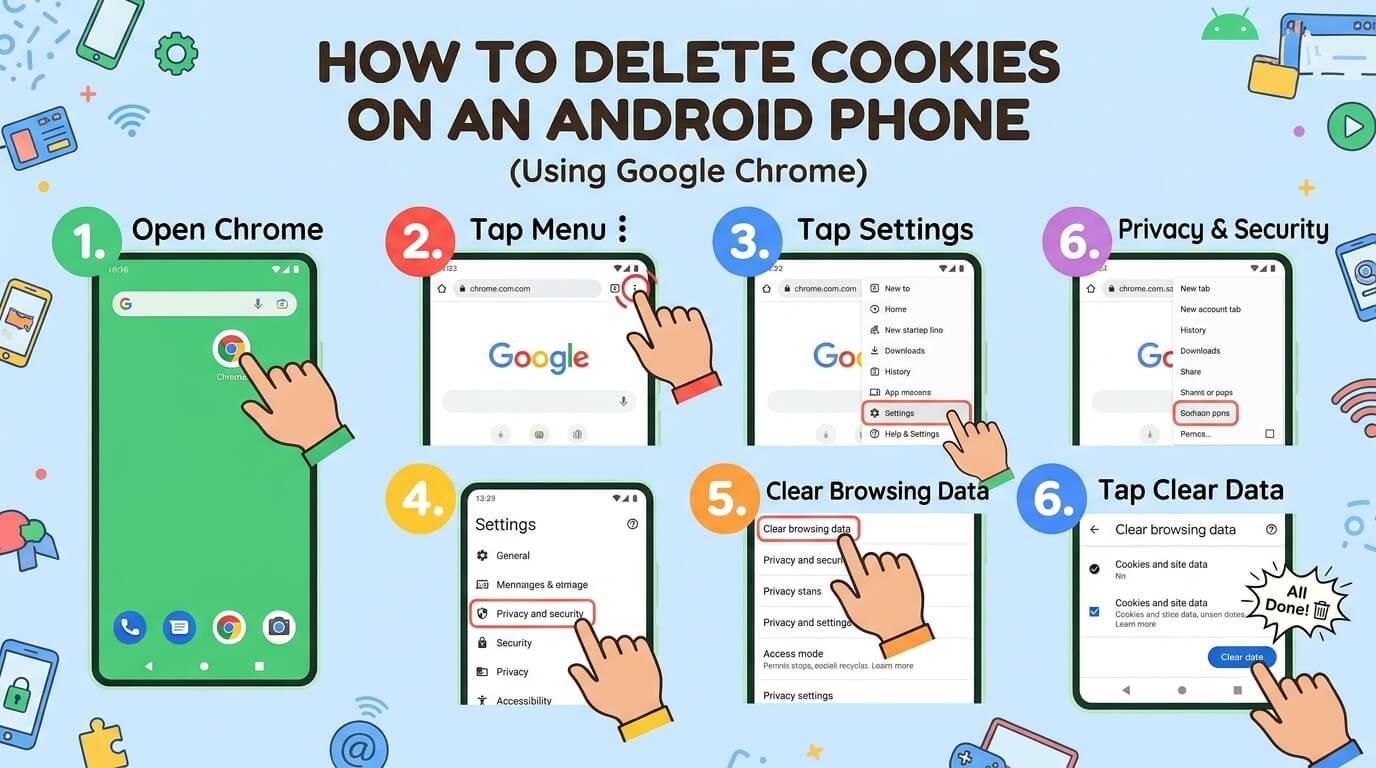
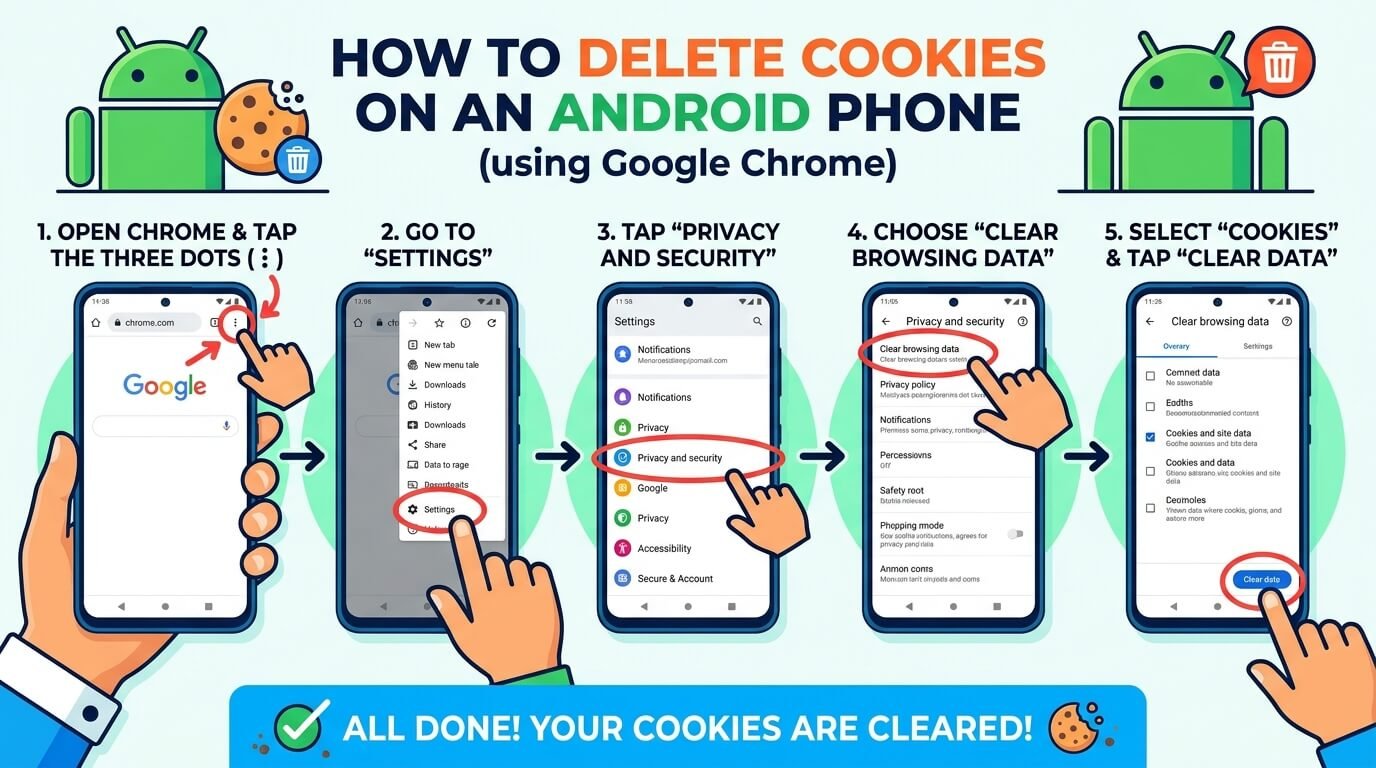
Chrome is the default browser on most Android phones, so let us begin here. Open the Chrome app and tap the three dots in the top-right corner of the screen. From the menu, tap Settings, then choose Privacy and security. Next, tap Delete browsing data. You will see a list of items with checkboxes. Make sure Cookies and site data is ticked. You can also tick Cached images and files if you want to free up more space. At the top, pick a time range, such as Last hour, Last 24 hours, Last 7 days, or All time. For a full cleanup, choose All time. Finally, tap Delete data and confirm. Within a few seconds, your cookies are gone.
How to Delete Cookies in Samsung Internet Browser
If you own a Samsung Galaxy phone, you may use Samsung Internet instead of Chrome. The steps are almost as simple. Open the browser and tap the menu icon, which looks like three horizontal lines at the bottom right. Tap Settings, then scroll to Personal browsing data and tap Delete browsing data. Choose the items you want to remove, and make sure Cookies and site data is selected. Then tap Delete. Samsung Internet also lets you turn on a feature that blocks trackers, which is a nice extra if you want to reduce the number of cookies saved in the future.
How to Delete Cookies in Mozilla Firefox for Android
Firefox is a favorite for people who care about privacy, and it makes cookie cleaning very easy. Open the Firefox app and tap the three dots, then select Settings. Scroll down and tap Delete browsing data. You will see a list that includes Open tabs, Browsing history, Cookies and active logins, Cache, and more. Tick Cookies and active logins and tap Delete browsing data. Firefox will ask you to confirm, so tap Delete once more. You can even turn on the option to delete browsing data every time you quit the app, which keeps your phone clean without any extra effort.
How to Delete Cookies in Microsoft Edge on Android
Edge is growing in popularity on phones, and it works very much like Chrome. Open the Edge app, tap the three dots at the bottom of the screen, and choose Settings. Tap Privacy and security, then tap Clear browsing data. Select Cookies and site data, choose the time range you want, and tap Clear now. Edge will remove the cookies and sign you out of most sites. If you use a Microsoft account, you may need to sign in again, so keep your details nearby.
How to Delete Cookies in Brave and Opera Browsers
Other browsers follow a similar pattern. In Brave, tap the three dots, open Settings, then go to Privacy and security and choose Clear browsing data. Tick Cookies and site data, pick your time range, and tap Clear data. In Opera, tap the Opera icon at the bottom right, open Settings, find Clear browsing data under the Privacy section, and select Cookies and site data before tapping Clear data. Even if your browser is not listed here, look for Settings, then Privacy, then something that says Clear or Delete data. Almost every Android browser uses those same words.
How to Delete Cookies for One Website Only
Sometimes you do not want to wipe everything. Maybe only one site is acting up, and you would rather stay logged in everywhere else. In Chrome, open the website, tap the lock or settings icon next to the web address, and tap Cookies and site data or Site settings. From there you can see how much data the site has stored and tap Delete data. This keeps all your other logins safe while fixing the one troublesome page. It is a smart, targeted way to solve a problem without starting over.
How to Clear App Cache and Data From Android Settings
Cookies are mainly a browser matter, but apps also store temporary data. To clean it, open your phone’s Settings and tap Apps. Choose the app you want to fix, such as Chrome, then tap Storage. You will see two buttons: Clear cache and Clear data. Clear cache is safe and only removes temporary files. Clear data is stronger, because it removes everything the app has saved, including cookies, settings, and saved logins, and returns the app to the way it was on day one. Use this option when the normal method inside the browser does not work.
How to Block Cookies Before They Are Saved
Deleting cookies is helpful, but stopping unwanted ones from arriving is even better. In Chrome, go to Settings, then Privacy and security, then Third-party cookies. Choose Block third-party cookies, or pick Block third-party cookies in Incognito if you want a lighter option. This stops most advertising trackers while still allowing sites to remember your login. You can also use Incognito mode, which automatically deletes cookies when you close the tab. Together, these small habits reduce how often you need to clean your phone.
How Often Should You Clear Cookies?
There is no perfect schedule, but a good rule is to clear cookies once every month or two. If you use public or shared phones, or if you handle sensitive accounts such as banking, clear them more often, perhaps after each session. If you only browse casually on a personal phone, every few months is enough. Of course, if you notice slow pages, repeated errors, or ads that seem too personal, do it right away. Setting a calendar reminder can help you build the habit without having to think about it.
Common Problems and Quick Fixes
Sometimes things do not go as planned. If the Delete data button seems to do nothing, restart the browser and try again, or update the app from the Google Play Store, because older versions may have small bugs. If a website still shows old information after you clear cookies, also clear the cache, then close and reopen the browser. If you are suddenly logged out of everything and cannot remember your passwords, use the Forgot password option on each site, or check your Google Password Manager in Settings. And if your phone is very low on storage, clearing cookies may not be enough, so consider removing unused apps as well.
Are There Any Risks in Deleting Cookies?
For most people, the risks are very small. The main downside is the inconvenience of signing in again and losing saved site preferences. A few websites that use two-step verification may ask you to confirm your identity once more, which can be annoying if you do not have your second device nearby. There is no risk to your photos, contacts, or messages, because cookies live only inside your browser. As long as you keep your passwords safe, deleting cookies is a harmless and healthy habit.
Frequently Asked Questions
Does deleting cookies delete my passwords?
No. Saved passwords are stored separately, unless you tick the Passwords option while clearing data.
Will clearing cookies speed up my phone?
It can help a little, especially if your browser has stored a lot of old data, but it will not work miracles on its own.
Is it safe to accept all cookies?
Not always. Essential cookies are fine, but tracking cookies can affect your privacy, so it is wise to review your choices.
Can I recover cookies after deleting them?
No. Once removed, they are gone, but websites will simply create new ones when you visit again.
Final Thoughts
Learning how to delete cookies on Android phone is one of the easiest ways to protect your privacy, fix website problems, and keep your browser running smoothly. Whether you use Chrome, Samsung Internet, Firefox, or Edge, the steps are short and nearly the same: open Settings, find Privacy, choose Delete browsing data, tick Cookies and site data, and confirm. Add a few smart habits, such as blocking third-party cookies and using Incognito mode when needed, and your phone will stay cleaner for much longer. Try it today, and you will likely notice a smoother, safer browsing experience right away.